


How to Scan Documents with Your Phone: A Gentle NZ Guide (2026)

Updated: Sep 30
You are standing at the kitchen bench with a pile of forms that need to be signed and sent, but the thought of wrestling with a bulky scanner feels like too much. It is a common scene in homes across New Zealand, where the pressure to "go digital" often leads to more frustration than freedom. You might worry about taking a blurry photo that no one can read, or feel anxious about where the file actually goes once you hit save. It's okay to feel this way. Learning how to scan documents with your phone nz doesn't have to be a source of stress; it can be a simple way to reclaim your space and your peace of mind.
We believe that mastering your device should feel like a gentle conversation, not a technical exam. You are already holding everything you need to turn those paper stacks into clean, professional-looking PDFs. This guide will show you the easiest methods for 2026, using the tools already tucked in your pocket. We will walk through how to ensure your scans are readable every time and show you exactly where your files are stored. By the end of this, you will have the confidence to clear the clutter and manage your digital life with total independence.
Table of Contents
Why Scanning Documents with Your Phone is a Digital Superpower
We often think of our smartphones as tools for entertainment or quick messages, but they hold a quiet power that can transform your daily life. For many of us, the sight of a growing paper stack on the kitchen bench creates a lingering sense of "to-do" list anxiety. It's a weight that follows you. Learning how to scan documents with your phone nz is about more than just technology; it is about taking back your time and your space. It's the relief of knowing exactly where that important letter is, without having to dig through a drawer.
Moving from a physical filing system to a digital one doesn't have to happen overnight. It starts with one document. By choosing to scan instead of just taking a photo, you are creating a file that is ready for the professional world. Whether you are dealing with the IRD, a bank, or a local school, a clean PDF shows that you've got things handled. It gives you a sense of digital independence that feels incredibly empowering in 2026.
To better understand this concept, watch this helpful video:
The Difference Between a Photo and a Scan
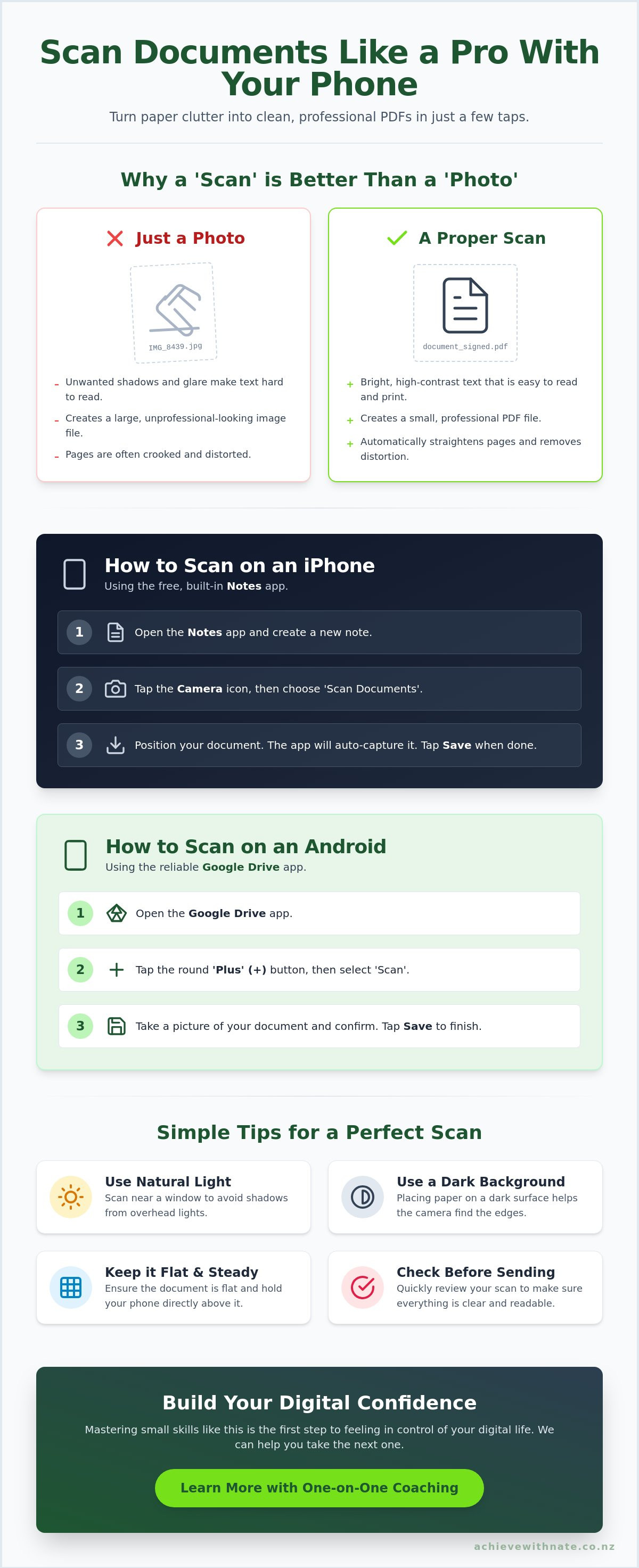
You might wonder why you shouldn't just snap a quick photo. While a photo captures an image, a scan captures the information. Understanding how phone scanning works helps take the mystery out of the process. When you use a scanning tool, the phone looks for the edges of the paper and pulls them straight, even if your hand was a little shaky. It improves the contrast, making the background white and the text crisp and dark. This makes it much easier for others to read and print. Scanned files are also smaller in size, which means they won't get stuck in your outbox when you try to email them from Otago to Auckland.
Practical Ways Kiwis Use Mobile Scanning
Across Aotearoa, people are using this simple skill to make life run a bit smoother. You can sign a school permission slip and send it back before the kids even leave for the bus. Small business owners use it to keep track of receipts for tax time, ensuring nothing gets lost in a shoebox. It is also a beautiful way to preserve our history. You can scan old family recipes or handwritten letters, keeping those memories safe and shareable without the risk of the original paper fading. If you ever feel like you need a bit more support, our One-on-One Digital Coaching can help you master these habits in a way that feels natural and kind.
Taking these small steps leads to a massive shift in how you feel about your devices. You aren't just how to scan documents with your phone nz; you are building a lifestyle that values clarity over clutter. It is a gentle path toward feeling more capable every day.
How to Scan on an iPhone Using the Notes App
If you own an iPhone, you already have a high-quality scanner in your pocket. You don't need to pay for extra apps or worry about complicated setups. The tool you need is the Notes app. It's free, it's already there, and it's surprisingly powerful. Many people in New Zealand use it every day to handle everything from bank forms to rental agreements without ever needing a physical printer. Mastering how to scan documents with your phone nz is a small step that makes a big difference in your digital independence.
Step-by-Step iPhone Scanning Guide
Start by opening the Notes app and creating a new note. You'll see a small camera icon just above the keyboard. When you tap that, a menu will pop up. Choose "Scan Documents". This is the secret to how to scan documents with your phone nz without any extra fuss. Once the camera opens, hold your phone over the paper. You'll see a yellow box appear as the phone looks for the edges of your page.
If you have "Auto" mode turned on at the top right, the phone will take the scan for you once it's steady. If you prefer more control, switch to "Manual" and press the shutter button yourself. For documents with many pages, just keep pointing the camera at the next sheet. The phone will bundle them all into one single file. When you're finished, tap "Save". To make sure you don't lose it, tap the share icon (the square with an arrow) and choose "Save to Files". This keeps your document organised and easy to find when you need to email it later. For more detailed technical steps, you can also check the official guide on How to Scan on an iPhone directly from Apple.
Adding Your Signature Digitally
Sometimes a scan isn't enough; you might need to sign a form for a local business or government agency. You don't need to print it out just to sign it. Once you've scanned the document, tap on it within your note. Look for the "Markup" tool, which looks like a small pen tip. From here, you can add a signature using your finger right on the screen. You can move the signature around and resize it so it looks professional and neat.
This simple trick saves so much time and paper. It's a great way to feel more in control of your digital life. If these steps feel a bit overwhelming, you might enjoy our Device and Email Basics Training, where we walk through these skills at your own pace. Taking it one step at a time is the best way to grow your confidence. Once you've finalised your document, it is ready to be sent off to your accountant or lawyer, looking just as good as if you'd used a thousand-dollar office machine.
Scanning on Android Phones with Google Drive
For those of us using a Samsung, Google Pixel, or any other Android device, you have a built-in helper ready to go. You don't need to feel left out if you aren't using an iPhone. Google Drive is the most reliable tool for most Kiwis because it connects directly to your email and storage. It's a safe, steady way to handle your paperwork without needing to learn a dozen different apps. Learning how to scan documents with your phone nz on an Android is a quiet victory for your daily routine.
The Simple Android Scanning Process
Open your Google Drive app. You'll see a bright "plus" (+) symbol in the bottom corner. Tap that, then choose "Scan". Your camera will wake up. Just like we discussed with other devices, hold it steady over your document. Once you take the photo, look for the crop tool in the corner to make sure the edges are perfect. You can also use a colour filter to make the text pop against the white background. If you find you need even more features for complex business forms, you might eventually look into a powerful PDF scanner like Adobe Scan, but for most of us, Google Drive is more than enough.
When the scan looks right, tap the "check" mark. Don't forget to rename your file immediately. Instead of leaving it as a long string of numbers, call it "Rates Invoice 2026" or "Doctor Letter". This small habit makes finding things later so much easier. To keep your digital life tidy, you can create a folder called "My Scans" to keep everything in one place. It feels great to know exactly where your files "go" once they are saved.
Alternative Apps for Android Users
While Google Drive is a fantastic all-rounder, you might prefer a different tool depending on your needs. Microsoft Lens is a popular choice for those who often use Word or Excel. It is particularly good at "cleaning up" images of whiteboards or business cards. If you are often out and about in areas with patchy internet, the "Files by Google" app is a helpful alternative. It lets you scan and save things directly to your phone's memory without needing a connection right away.
Choosing the app that feels right for your own pace is part of the journey. There is no right or wrong choice, only the one that makes you feel the most comfortable. If you ever feel stuck or just want someone to walk through these steps with you, our Device and Email Basics Training is designed to be a supportive space for exactly these kinds of questions. You are doing great, and every scan you complete is another step toward true digital independence.
Making it Look Professional: Simple Tips for Clear Scans
It is one thing to know which buttons to press, but it is another to make the result look professional. You want your document to be crisp, clear, and easy for the person on the other end to read. Sometimes, a scan can come out looking grey or blurry, which can be frustrating. Don't worry. These small hiccups are easy to fix with a few gentle adjustments to your environment. Learning how to scan documents with your phone nz is a skill that gets better with a few simple habits.
Start with the simplest fix. Most of us carry our phones everywhere, and the camera lens often gets a bit of a smudge from our fingers. A quick wipe with a soft cloth or even the corner of a clean t-shirt can instantly sharpen your image. Next, think about your light. Overhead kitchen lights often create a shadow of your own head right in the middle of the page. The "Window Light" trick is your best friend. Move your document to a table near a window during the day. Natural light is softer and more even, which helps your phone see every word clearly.
The Perfect Setup at Home
Positioning is key. If you are scanning a white piece of paper, place it on a dark surface like a wooden dining table or a dark placemat. This contrast helps the software find the edges of the page automatically. If the paper has been folded in an envelope, try to gently flatten the creases first. You can even use a heavy book to press it flat for a moment before you start. It's much easier to get a good result when the paper isn't trying to curl back up. Taking a deep breath and holding it for a second while you tap the button can also help keep your hands steady for a sharper finish.
Troubleshooting Common Scanning Hiccups
Sometimes the edges look a bit wonky or the app cuts off a corner. If this happens, don't feel like you've failed. Simply tap the "retake" button and try again. Make sure you are holding the phone directly above the document, not at an angle. If you are dealing with shiny paper, like a glossy brochure or certain government forms, glare can be a problem. Try moving slightly further away from the window or tilting the paper just a fraction to catch the light differently.
Once you know how to scan documents with your phone nz, you'll find that those IRD forms or local council documents look much more professional. If you find that the technology still feels a bit stubborn, you don't have to struggle alone. We can sit down together and work through it at your pace. If you'd like a helping hand to get your home office running smoothly, feel free to reach out through our Digital Support Expression of Interest form. We are here to make sure you feel confident and supported.
Beyond the Scan: Building Your Digital Confidence in Aotearoa
You have done it. You have taken a physical piece of paper and turned it into a crisp, digital file. While it might seem like a small task, learning how to scan documents with your phone nz is actually a significant milestone. It is a quiet proof that you can handle the changes happening in our digital world. Every time you successfully send a scan to your accountant or share a signed form with a local school, you are building a foundation of confidence. You aren't just managing files; you are reclaiming your independence in a world that often feels like it's moving too fast.
In Aotearoa, we're seeing more services move online every day. From the new Govt.nz app to digital driver's licenses, the way we interact with our community is changing. With 94% of New Zealanders now accessing the internet through their mobile phones, these skills are becoming essential. But "essential" doesn't have to mean "stressful". You're allowed to move at your own pace. You're allowed to ask questions. There's no deadline for becoming "tech-savvy", and there is certainly no room for judgment along the way.
The Achieve With Nate Movement Philosophy
Our approach at the Achieve With Nate Movement is built on a simple belief: the person is more important than the software. We provide a criticism-free, patient environment where you can explore technology without fear of making a mistake. We focus on incremental, manageable actions. Instead of trying to learn everything at once, we master one small skill, like how to scan documents with your phone nz, and then we move to the next. This gentle path ensures that you feel supported and seen throughout your journey. We don't just teach you how to use a device; we help you feel at home in the digital age.
Next Steps for Your Digital Journey
If you feel ready to keep growing, we're here to walk beside you. You don't have to struggle with blurry photos or lost files on your own. You can book a gentle one-on-one digital coaching session to get personalized support for your specific devices. If you want to keep exploring on your own first, we have created a guide on how to use my phone better. Join our movement toward a stress-free digital life in NZ. Remember, every big change starts with one small, manageable step. You've already taken the first one today.
Embrace Your New Digital Independence
You now have the tools to turn that stack of paper on your kitchen bench into tidy digital files. We have explored how simple apps like Notes and Google Drive can help you stay organised without any extra cost or stress. By using natural light and a steady hand, you can create scans that look professional and are easy to read. Mastering how to scan documents with your phone nz is a wonderful first step toward clearing the clutter and gaining control over your home office. It is a quiet victory that proves you can handle the digital changes happening all around us at your own pace.
If you would like more support, our patient and non-judgmental coaching is here for you. We focus on practical, everyday skills tailored specifically for New Zealand seniors and small business owners who want to feel more capable. We believe that technology should serve you, not cause you anxiety. Ready to build your digital confidence? Let's chat one-on-one. Take your time with these new skills. Every small, manageable action you take today builds the foundation for a much easier tomorrow. You have got this.
Common Questions About Mobile Scanning
Is it safe to scan my ID or passport with my phone?
Yes, it is safe as long as you use the trusted apps already built into your device. Tools like Apple Notes and Google Drive use strong encryption to keep your private information secure. If you feel a bit anxious about keeping digital copies of your ID, you can always delete the scan from your phone once you have finished sending it to the person who needs it.
Where do my scanned documents go once I've saved them?
On an iPhone, your scans usually live inside the Notes app or the Files app. If you are using an Android, they are typically saved directly into your Google Drive or a folder called "Scanned" in your file manager. It can feel like your files have disappeared at first, but you can choose exactly which folder they live in so they are easy to find later.
Do I need to pay for a scanning app or is there a free one?
You don't need to pay for any extra apps. Your phone already has everything you need for free. Learning how to scan documents with your phone nz is best done using the tools you already own, like Notes or Google Drive. These free options are professional, high-quality, and much safer than many of the "free" apps found in the app store that might show you annoying adverts.
How do I scan multiple pages into one single PDF file?
You simply keep pointing your camera at the next page before you hit the "Save" button. Both iPhone and Android apps will wait for you to finish all your pages. They then bundle everything together into one tidy document. This is a wonderful way to keep long contracts or school newsletters together so you don't have to send ten different emails.
Can I scan a document and then edit the text inside it?
Most basic scans are saved as an image, which means you cannot type over the original words. However, you can use the "Markup" tool to sign your name or add a small note by hand. If you need to change the actual text, you would need more advanced software, but for almost all business and government forms in New Zealand, a standard scan is exactly what is required.
What happens if my hand is shaky and the scan is blurry?
Don't worry if your first attempt isn't perfect. You can tap the "Retake" button as many times as you need without any pressure. To help with shaky hands, try resting your elbows on the kitchen table while you hold the phone. This small adjustment makes how to scan documents with your phone nz much easier and ensures your final file is crisp and easy for others to read.
How do I email a scan once I have finished it?
Once your scan is saved, look for the "Share" icon, which usually looks like a small square with an arrow pointing up. Tap that icon and choose your email app, such as Mail or Gmail. From there, you can type in the email address of your doctor, lawyer, or family member and hit send. It's a quick and gentle way to get your paperwork where it needs to go.

Comments