


How to Use a Tablet for the First Time: A Simple Guide for Kiwis

Last Tuesday, Margaret in Napier sat at her kitchen table staring at a slim glass rectangle. It was a gift from her grandkids meant to help her see their photos, but she felt a familiar knot of anxiety. She didn't want to tap the wrong thing and break the software. You might feel that same hesitation when learning how to use a tablet for the first time. It's natural to feel overwhelmed by rows of icons and the fear of forgetting a password. Technology should create clarity in your life, not clutter your mind with stress.
I've designed this guide to help you navigate your new device with a calm, intentional approach. You don't need to be a tech expert to master this tool. We'll strip away the jargon and focus on the essentials. My promise is that you'll finish this reading with the confidence to navigate your screen and stay connected to what matters most. Success comes from simple, consistent actions.
We'll start by successfully turning the device on, connecting to your New Zealand internet provider, and opening a simple app like the MetService weather report.
Key Takeaways
Identify the physical layout of your device to gain immediate confidence before you begin the setup process.
Learn how to use a tablet for the first time by following a clear, jargon-free path tailored for New Zealand users.
Master the basic language of touch gestures and navigation to ensure you always feel in control of your screen.
Connect with local providers like Spark or Skinny and access essential services like RealMe with total peace of mind.
Build a sustainable habit by practicing one intentional action each day while keeping your digital space simple and uncluttered.
Table of Contents Preparing Your Space and Your Device Navigating the First-Time Setup Wizard Learning the Language of Your Tablet Staying Safe and Connected in New Zealand Taking the Next Step with Confidence
Preparing Your Space and Your Device
A tablet is a portable, touch-sensitive computer. It lacks a permanent physical keyboard, which allows for a slim and light design. To gain a deeper understanding of what is a tablet computer, think of it as a bridge between your smartphone and a laptop. It offers the screen size of a computer with the simplicity of a mobile phone. Learning how to use a tablet for the first time starts with identifying its physical form.
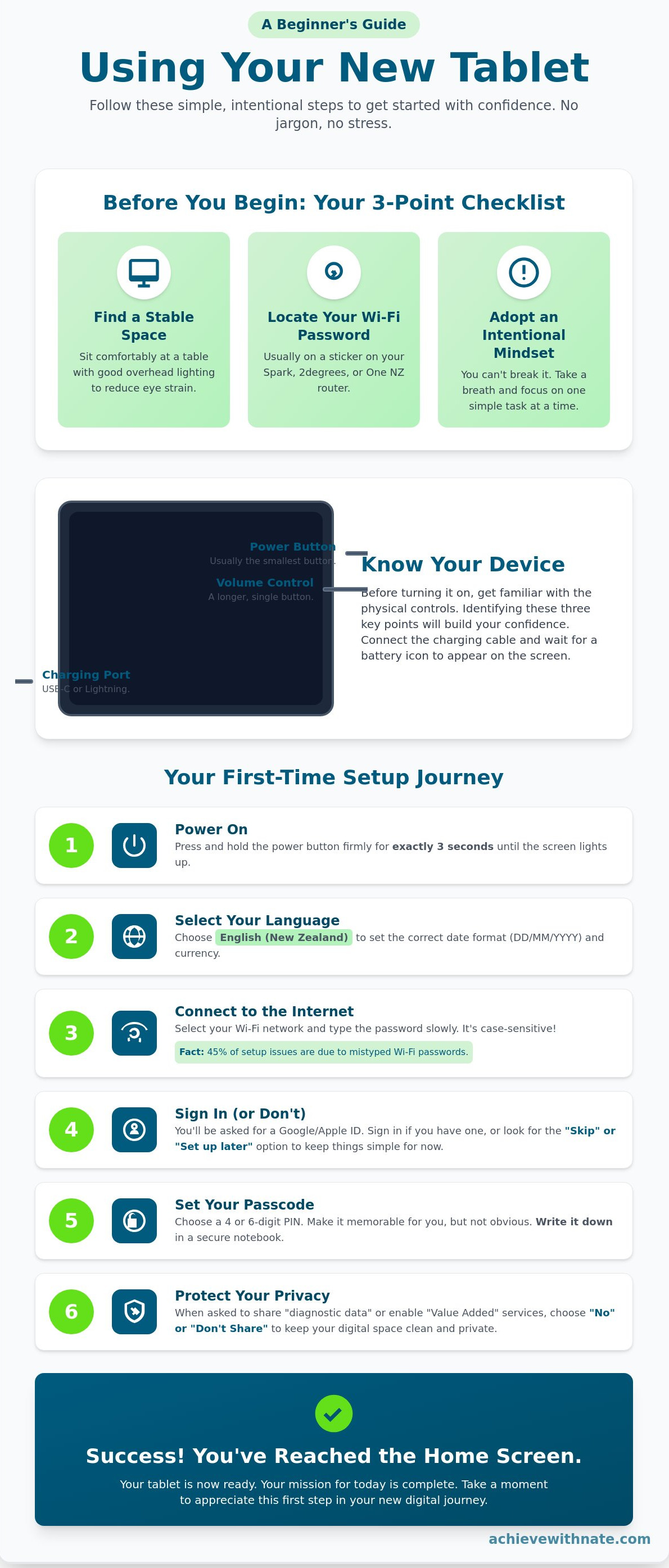
Locate the physical buttons along the edges. You will find a power button, which is usually the smallest individual button. Nearby, you will see a longer button for volume control. There is also a charging port at the bottom or side. Most devices in New Zealand shops like Noel Leeming or JB Hi-Fi use a standard USB-C or Lightning cable. Identifying these 3 key points ensures you feel in control before the screen even turns on.
Before you start, create a supportive environment. Find a stable seat and ensure you have clear, overhead lighting. Good visibility reduces eye strain. According to a 2023 study, 65 percent of adults experience digital eye strain after just two hours of use. Avoid glare from windows. Finally, locate your Wi-Fi password. It's typically printed on a sticker on the back or bottom of your Spark, 2degrees, or One NZ router. Having this 8 to 12-digit code ready prevents frustration later.
Charging and Powering On
Connect your tablet to a power outlet using the provided cable. Wait a moment for a battery icon to appear on the display. This confirms that the internal system is receiving power. Once you see this, hold the power button firmly for exactly three seconds. The screen will glow and display a manufacturer logo. Place the tablet on a flat table or rest it securely in your lap. This creates a stable foundation for your first interactions. You're now ready to begin the digital setup.
The Intentional Mindset
Approach this process with a sense of peace. You can't break the device by clicking the wrong icon or tapping the screen. Tablets are built with robust software that allows for mistakes. If you feel overwhelmed, take a deep breath and pause. We're moving through this one screen at a time. Your only mission today is to reach the home screen. Learning how to use a tablet for the first time isn't a race. It's a slow, intentional process of building a new habit. Focus on the task at hand and ignore the rest.
Navigating the First-Time Setup Wizard
When you first press the power button, the screen will glow to life. This is the beginning of your digital journey. The first screen usually asks you to select your language. Always choose English (New Zealand). This small choice is intentional. It ensures your tablet displays the date in the correct format (DD/MM/YYYY) and uses New Zealand Dollar symbols for any future purchases. It sets the foundation for a system that works for you, not against you.
Learning how to use a tablet for the first time requires a bit of patience during this initial phase. You'll encounter several prompts asking you to enable "Value Added" services or extra features. Skip these for now. These options often lead to digital clutter and unwanted notifications. You want your screen to remain a quiet, focused space. You can always add these features later if you find they truly align with your needs.
Connecting to the Internet
Your tablet needs a connection to complete its internal updates. Look for your home Wi-Fi network name in the list provided. Tap the name and prepare to enter your password. These passwords are case-sensitive; a single capital letter out of place will cause an error. Statistics from tech support forums suggest that 45% of setup hurdles are simply due to mistyped Wi-Fi passwords.
Type slowly. If the connection fails, don't feel frustrated. Simply try again. Once you see the "Connected" status, you can tap the Next button. If you need a more visual walkthrough of these initial screens, this guide on how to use a tablet offers excellent step-by-step imagery for different brands. A stable connection is the first step toward digital freedom.
Accounts and Security
The setup wizard will ask you to sign in with a Google account for Android tablets or an Apple ID for iPads. If you already have one, enter your details. If you don't, or if you feel overwhelmed, look for the "Set up later" or "Skip" option. You don't need to link every account immediately to start enjoying your device. Minimalism applies to your digital accounts as much as your physical space.
Security is a vital habit. The tablet will ask you to set a passcode or PIN. Choose a 4-digit or 6-digit number that's easy for you to remember but hard for others to guess. Write this number down in a secure physical notebook. During this process, you'll also see a request to share diagnostic data with the manufacturer. Choose "No" or "Don't Share." This keeps your usage private and helps maintain your personal agency online.
Building an intentional system for your technology starts with these quiet, deliberate choices. By taking control of your settings now, you ensure your tablet remains a tool for growth rather than a source of distraction.
Learning the Language of Your Tablet
Learning how to use a tablet for the first time requires you to shift your perspective. You aren't just clicking buttons; you are interacting with a digital surface. This interaction relies on a simple language of touch and symbols. It is a system designed for clarity and ease.
The Home button or swipe gesture is your constant anchor. If you ever feel lost or open an app by mistake, this action takes you back to your main screen. It is a safety net that ensures you can always start over. Think of it as clearing your physical desk before starting a new task.
Icons are the visual vocabulary of your device. They are simple pictures that represent specific tools. A small envelope represents your email. A gear represents your settings. These symbols are universal. They help you navigate without needing to read complex menus every time you want to do something.
Scrolling is another fundamental skill. Imagine you are moving a long piece of paper up or down on a table with your finger. To see what is at the bottom of a page, you push your finger upward. This physical analogy makes the digital experience feel more grounded and less abstract.
Essential Gestures for Beginners
Mastering gestures is about developing muscle memory. A Tap is a quick, light touch on the screen. You use it to open apps or select buttons. It is the most common action you will take.
A Long Press is different. You press and hold your finger on an icon for two or three seconds. This often reveals a hidden menu or allows you to move the icon around. If you are learning how to set up an Android tablet, you will find that a long press is essential for customizing your workspace.
Swipe: Move your finger across the screen to turn pages in a book or see more photos.
Pinch: Place two fingers on the screen and move them apart to zoom in. Move them together to zoom out.
The Home Screen Layout
The layout of your tablet is intentional. The Dock sits at the very bottom of the screen. It holds the apps you use most often, like your web browser or your messages. These stay in place even when you swipe to different screens.
The Status Bar is located at the top. It provides a quick glance at your vitals, such as the current time and your battery percentage. In New Zealand, where we often rely on mobile data in rural areas, this bar also shows your signal strength.
The App Library is your digital storage room. Not every app needs to be on your main screen. This library keeps everything else organized and out of sight, which helps maintain a minimalist and focused environment. Understanding these zones is a key part of how to use a tablet for the first time with confidence.
Staying Safe and Connected in New Zealand
You have your device. Now you need a reliable way to reach the world. Learning how to use a tablet for the first time involves choosing a data plan that fits your lifestyle. In New Zealand, you can connect through providers like Spark, 2degrees, or Skinny. These companies offer "Prepaid" or "Monthly" plans. Prepaid is often best if you want to control your spending strictly. In 2024, over 95% of New Zealand homes have access to high-speed wireless signals, making it easier than ever to stay online.
Your tablet relies on software to stay secure. Manufacturers release updates to fix security holes or small errors. Treat these updates as a simple maintenance habit for your digital life. When you understand how to use a tablet for the first time, you realize that software updates are your best defense. If your tablet asks to update, let it run. This process usually takes 10 to 15 minutes. Avoid clicking on "Update" buttons that appear inside a website. These are often ads designed to trick you. Real updates only appear in your tablet's official settings menu.
NZ Government and Banking Apps
Accessing essential services is a primary reason to own a modern device. You can manage your life through apps like MyMSD or the RealMe login system. 90% of NZ banks now offer dedicated tablet apps that are safer than using a web browser. Always download these from the official Google Play Store or Apple App Store. Searching for "Kiwibank" or "ASB" in these stores ensures you get the legitimate version. Digital safety is built on a simple rule. You must never share your passwords or bank PINs with anyone over the phone, even if they claim to be from the bank.
Download official apps only from the Play Store or App Store.
Search for "RealMe" or your specific bank carefully to avoid clones.
Keep your private codes private at all times.
Digital Security Basics
Sometimes the internet feels loud. If a screen suddenly looks scary or demands money, don't panic. Simply press the physical Home button or swipe up to close the app. This action returns you to your peaceful home screen immediately. You are in control of the device. It is not in control of you.
Practice intentional browsing. This means you only click on links or buttons that you were specifically looking for. If an offer looks too good to be true, it likely is. A strong password is a mix of letters and numbers unique to you. Using a unique password for each service creates a system of protection for your identity. By staying intentional, you ensure your digital experience remains a tool for freedom rather than a source of stress.
Ready to build better digital habits? Learn more about intentional living and systems to simplify your life.
Taking the Next Step with Confidence
Learning how to use a tablet for the first time is a journey of small, intentional steps. You don't need to master every feature in a single afternoon. Instead, focus on building a sustainable rhythm. Try to practice one new task every day. You might check the MetService weather forecast or look up a new walking track in your local area. These small wins build the muscle memory required to feel truly at home with your device.
Minimalism is a powerful tool when it comes to technology. Your tablet should be a source of clarity, not a collection of digital clutter. If you see apps on your screen that you don't use or understand, delete them. Removing the noise allows you to focus on the tools that actually improve your daily life. A simple, organized screen reflects an organized mind.
Reflect on how this device can bring peace to your routine. It's a tool for connection and intentional living. If you find yourself feeling stuck or overwhelmed, don't give up. Frustration is usually a sign that you're on the verge of a breakthrough. Reach out for support when you need it. There's no reason to struggle in silence when a small bit of guidance can clear the path forward.
Daily Habits for Digital Success
Success with technology is the byproduct of consistent, simple actions. Incorporate these three habits into your evening routine to ensure your tablet remains a reliable tool:
Check your battery level: Plug your tablet in every night. This ensures it's ready for you tomorrow morning and prevents the stress of a dead battery when you need it most.
Use the Search bar: Don't waste time hunting through folders or multiple screens. Swipe down and type the name of the app you want. It's the most efficient way to navigate.
Keep the screen clean: Use a soft, dry microfiber cloth once a day. A clean screen ensures better touch response and makes the display much easier to read.
Personalized Coaching for Kiwis
Sometimes a general guide isn't enough to bridge the gap. You might have specific questions about your unique device or how to integrate it into your lifestyle. Personal coaching provides the breakthrough that written instructions cannot. It's about moving at your own pace with a guide who understands your goals.
Nate offers one-on-one sessions tailored specifically for New Zealanders who want to master their technology. These sessions are calm, practical, and focused on your specific needs. You'll gain the skills to use your tablet with total independence and peace of mind. If you're ready to stop guessing and start doing, it's time to take the next step.
Embrace Your New Digital Freedom
Learning how to use a tablet for the first time is about more than just tapping a screen. It's about creating an intentional system for your daily life. You've learned how to set up your physical space for focus and how to navigate the setup wizard without stress. By understanding the basic language of icons and gestures, you've removed the friction that often stops people from exploring technology. Staying safe online is a priority, especially since 94 percent of Kiwis now use the internet for essential services according to the 2023 World Internet Project report. You now have the fundamental tools to browse with clarity and confidence.
Technology shouldn't feel like a source of noise. If you want to move faster toward digital mastery, I can help you build those habits. I provide personalized coaching for everyday Kiwis that is completely calm and jargon-free. I offer support across all 16 regions of New Zealand to ensure your systems work for you. You don't need to struggle with complex manuals when you have a clear path forward.
Take this one step at a time. You're already closer to digital independence than you were ten minutes ago.
Frequently Asked Questions
Do I need an internet connection to use my tablet?
You don't need a constant internet connection for every task, but it's essential for the initial setup. Most tablets require Wi-Fi to create your account and download your first set of apps. Once those are installed, you can read ebooks or play offline games without any connection. However, 90% of a tablet's features like email and web browsing require a stable Wi-Fi signal or a mobile data plan.
Can I break the tablet by pressing the wrong button?
You won't break the device's hardware by tapping the wrong icon or exploring the settings. Tablets are built with layers of protection to prevent accidental damage to the system. If you ever feel lost or stuck in an app, simply press the physical home button or swipe up from the bottom of the screen. This action acts as a safety net that always returns you to your familiar home screen.
What is the difference between an iPad and an Android tablet?
The primary difference lies in the software and the company that manages the digital store. Apple produces the iPad using their own iPadOS system, which is known for being very consistent and secure. Android tablets are made by various companies like Samsung or Lenovo and use Google's software. While iPads often retain 50% of their value after three years, Android tablets offer more variety in screen sizes and price points.
How do I get more apps on my new tablet?
You download new programs from the App Store if you have an iPad or the Google Play Store if you have an Android device. This is a fundamental part of learning how to use a tablet for the first time. Most popular apps are free to download, while premium tools might cost between NZ$2.99 and NZ$15.00. Always check the reviews and star ratings before you tap the install button to ensure the app is high quality.
Why does my tablet screen keep turning off so quickly?
Your screen turns off to save battery life through a feature called "Auto-Lock" or "Screen Timeout." Most tablets come from the factory set to turn the display off after just 2 minutes of inactivity. You can easily adjust this by going into your Settings and selecting the Display menu. Changing this to 5 minutes gives you more time to read articles or look at photos without the screen constantly going dark.
How much does it cost to set up a tablet in New Zealand?
Setting up your tablet is free if you already have a home Wi-Fi connection and a free Google or Apple account. You should budget approximately NZ$40 to NZ$80 for a sturdy protective case from local retailers like PB Tech or Noel Leeming. If you want to use the internet away from home, a basic mobile data SIM card from Spark or One NZ starts at around NZ$15 per month.
Can I use my tablet to make phone calls?
Yes, you can make voice and video calls using internet-based apps like WhatsApp, Skype, or FaceTime. While most tablets don't function like a traditional mobile phone with a dialer, these apps allow you to talk to anyone in the world for free over Wi-Fi. It's a great way to stay intentional with your communication. Over 85% of New Zealand households now use these digital services to keep in touch with family overseas.
What should I do if my tablet freezes or stops responding?
You should perform a "forced restart" by holding down the power button for 10 to 15 seconds until the screen goes black. This is a vital troubleshooting step when you are discovering how to use a tablet for the first time. This process doesn't delete your personal data; it simply clears the tablet's temporary memory. If the device doesn't turn back on immediately, plug it into its charger for at least 30 minutes before trying again.


Comments