


Setting Up Email on Your New Phone: A Calm Guide for Kiwis (2026)

You just took your brand new phone out of the box, but instead of feeling excited, you might feel a small knot of worry in your stomach. You want to see your messages and family photos, but the thought of setting up email on new phone nz feels like a mountain you aren't quite ready to climb. It is completely normal to worry that one wrong tap might accidentally delete years of precious memories or important work notes. Many of our local learners feel this same spark of tech overwhelm when they face a screen full of buttons they don't recognize.
It's true that technology moves at a dizzying pace, and it often feels like it's leaving us behind with confusing jargon and hidden settings. You just want your device to be a helpful tool, not a source of stress. This guide is your calm companion to getting everything sorted. I will show you exactly how to get your inbox working correctly with a patient, step-by-step approach that keeps you feeling in control. We are going to walk through the simple steps to connect your account, clear up the confusion around settings, and ensure your old emails appear safely on your new screen.
Key Takeaways
Learn why feeling unsure about a new device is completely normal and how to approach technology with a calm, steady mind.
Follow a gentle path to adding your email account on an iPhone by finding the familiar silver gear icon.
Master the simple steps for setting up email on new phone nz for both Android and Samsung devices.
Discover how to handle unexpected server messages and connection hiccups without any technical stress.
Gain the confidence to manage your own inbox and feel truly at home with your new device.
Table of Contents
Why setting up email feels like a hurdle (and why that is okay)
Starting a new phone can feel like landing in a foreign country where you don't speak the language. Everything is shiny and new, but you don't quite know where the kitchen or the bathroom is yet. It is perfectly okay to feel a bit hesitant. Many people worry that while setting up email on new phone nz, they might click a button and delete their entire history. Please take a deep breath. Your emails are actually stored safely in the cloud. This means they aren't just on your phone; they live on a secure server. Even if the setup takes a few tries, your messages are safe and sound.
To help you visualize how this works on different devices, watch this helpful video:
The "Digital Moving Day" mindset
Think of this process like moving into a new home. You wouldn't expect to have every box unpacked and every picture hung in the first five minutes. It takes time to find the right spot for everything. By taking things slowly, you are building your digital confidence. There is no race here. We are going to move through this together, one small step at a time, until your inbox feels like home again. We'll focus on the basics first and let the complicated bits wait.
What you will need before we start
Before we tap any buttons, let's gather our tools. Having these ready will make the process much smoother. You'll need your full email address and your password. If you use a specific app, looking at a comparison of email clients can help you understand why your phone might suggest one app over another. Finally, make sure you are sitting somewhere comfy with a strong Wi-Fi connection. A stable internet connection is the secret to a stress-free start. Setting up email on new phone nz is much easier when you aren't fighting with a patchy signal.
Getting your email onto an iPhone: The simple steps
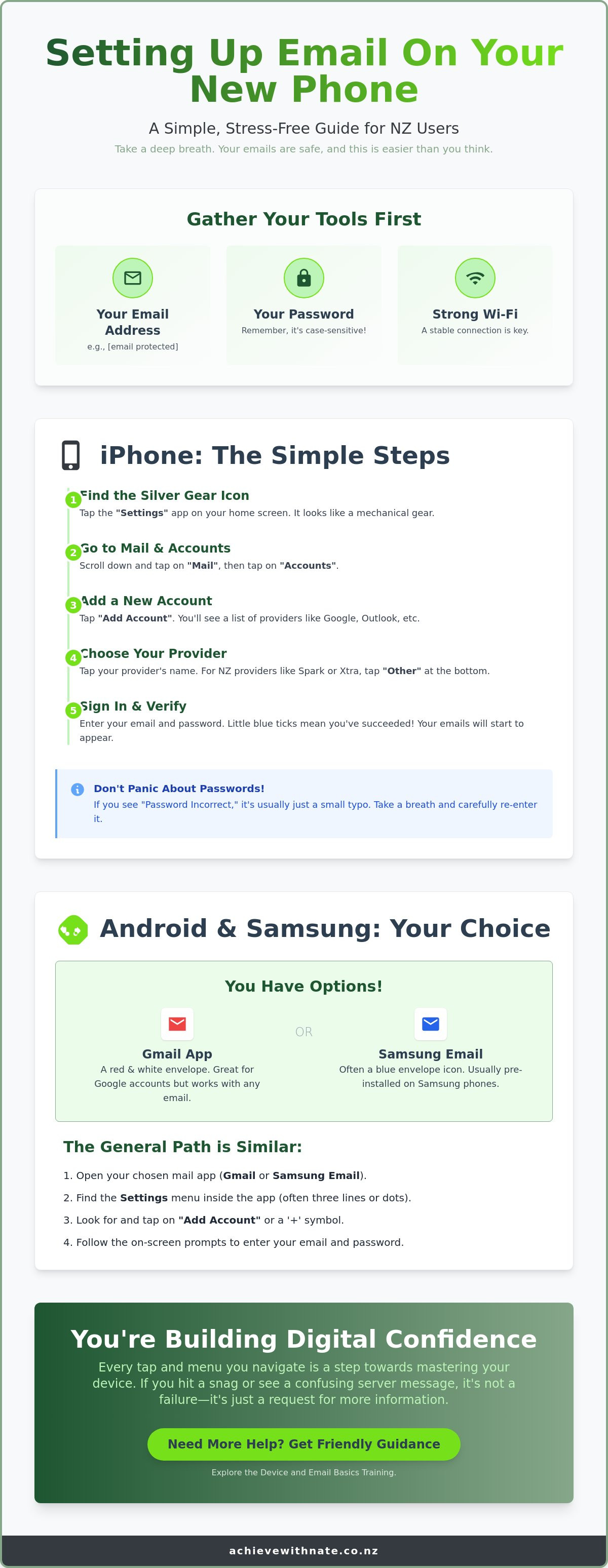
To begin, look for the "Settings" icon on your home screen. It is the one that looks like a small silver gear. Once you tap that, scroll down until you see "Mail." Inside the Mail menu, you will find a section called "Accounts." Tap that, and then select "Add Account." This is the first practical step in setting up email on new phone nz. It might feel like a lot of menus, but you are doing great so far. Take your time with each tap.
You will now see a list of familiar names like iCloud, Google, and Outlook. If you use one of these, simply tap the name and follow the prompts to sign in. However, many of us in New Zealand use local providers like Spark or Xtra. If your provider isn't on the main list, don't worry. Just tap "Other" at the bottom of the screen. While the official Apple guide shows the basic technical path, it doesn't always explain the local quirks we face here.
The "Automatic" vs "Manual" choice
In most cases, your iPhone is quite clever. It tries to do the hard work for you by looking up the settings in the background. This is the "automatic" way. Occasionally, the phone might pause and ask you for "Server Settings." This isn't a sign that you've done something wrong. It is just the phone asking for a bit more information. If these screens start to feel a bit overwhelming, my Device and Email Basics Training is a gentle way to get through it with a friendly guide by your side.
Verifying your account
After you enter your details, you will see a small spinning circle while the phone checks everything. When little blue ticks appear next to your information, it means you've succeeded. If you see a message saying "Password Incorrect," please don't be discouraged. It happens to everyone. Usually, it's just a tiny typo or an accidental capital letter. Delete the password field, take a slow breath, and type it in again. Once it's accepted, your emails will start flowing into your inbox almost immediately.
Connecting your email on an Android or Samsung phone
Android and Samsung devices offer a bit more choice. This can sometimes feel like a bit much. You likely have two main options right on your home screen:
Gmail App: Usually a red and white envelope icon.
Samsung Mail: Often a purple icon with a white envelope.
Both are excellent choices for setting up email on new phone nz. Once you open your preferred app, look for your profile picture in the top right corner or three horizontal lines in the top left. Tapping there will reveal the "Add another account" option. This is the gateway to your messages.
When you reach the setup screen, you will see several options. If your email address ends in @gmail.com, simply tap "Google." However, if you are using a local New Zealand address, you might need to select "Personal (IMAP)." This tells the phone to use a standard connection method. It is different from a Google-specific one. You can find more technical details on how to set up email on your smartphone, but for most of us, following the on-screen sign-in prompts is all that is required.
Special tips for Xtra Mail and Spark users
Local providers like Xtra or Spark sometimes require a little more patience. Because they aren't global giants like Google, the phone doesn't always recognize their settings instantly. If the automatic setup pauses, it might ask for incoming or outgoing server names. This is a common stumbling block where many Kiwis feel stuck. We specifically designed our device and email basics training to help you navigate these local quirks without the technical headache.
Syncing your contacts and calendar
Getting your messages is the big win, but don't forget your friends and appointments. During the final steps, your phone will ask what you want to "Sync." Make sure the switches for Contacts and Calendar are turned on. This ensures your old address book and busy schedule appear on your new screen automatically. Remember to hit "Save" or "Finish" at the very end. If you would like a helping hand to ensure everything is perfectly connected, you can book One-on-One Digital Coaching to get it done together.
Troubleshooting and finding your digital confidence
Sometimes, even with a clear plan, the screen shows us something we don't expect. If a box pops up asking for "Incoming Server" settings, stay calm. It is simply the phone asking for the digital address of your mail provider. For many of us, setting up email on new phone nz involves these tiny technical hiccups. If your email won't "fetch" or download new messages, the first thing to check is your connection. A quick look at the top of your screen to see if your Wi-Fi bars are full can save a lot of worry.
If things still feel stuck, try the oldest trick in the book. Restart your phone. Turning it off and back on again clears out small glitches and gives the device a fresh start. It is often the magic fix that gets your inbox moving again. Remember, technology is just a tool. You are the one in charge. Every small obstacle you face is just a chance to learn a little more about how your new device thinks. Keep practicing. The more you explore, the more familiar everything will become.
When to ask for a helping hand
There comes a point where a technical hurdle starts to steal your peace of mind. If you find yourself feeling frustrated or upset, it is perfectly okay to pause. You don't have to do this alone. For nz seniors, finding patient, local support can make all the difference. We believe that everyone deserves to feel safe and capable when using their technology. Our digital coaching is designed to be a criticism-free space where you can ask any question without feeling inadequate.
Your next small step
Once you see your messages appearing, take a moment to celebrate. Send a quick test email to yourself. Seeing that message arrive is a wonderful way to confirm that everything is working perfectly. It is a small win, but it is a significant one. You have successfully navigated the process of setting up email on new phone nz. You are more capable than you think. Remind yourself that you've handled the hard part. Now, you can simply enjoy staying connected with the people who matter most.
Step into your new digital journey with confidence
You have explored the "moving day" mindset and walked through the practical steps for both iPhone and Android devices. It is important to remember that your messages are safe in the cloud; every small hurdle is just a natural part of the learning process. Now that you understand the path for setting up email on new phone nz, the screen in front of you might seem a little less daunting. You are already building the skills to stay connected with your loved ones and your community.
If you still feel a bit of tech overwhelm, you don't have to face it alone. We have been empowering Kiwis since our movement began by providing a psychological safe space for learning. Whether you need help with your inbox or want to explore new tools, Nate is here to help with patient, non-judgmental coaching. You deserve to feel in control of your device without any pressure or stress. Book a calm, one-on-one session with Nate to master your new phone and experience localized support tailored just for you.
Take one manageable action today. You are doing a wonderful job, and your digital confidence will only grow from here.
Common Questions About Setting Up Your Email
How do I find my email password if I have forgotten it?
You can often find a forgotten password hidden in the settings of your old device under "Passwords" or "Autofill." If it isn't there, you will need to visit your email provider's website on a computer and click the "Forgot Password" link. They will usually send a reset code to your mobile number or an alternative address. This is a common part of setting up email on new phone nz, so don't feel discouraged if you need a fresh start.
Will setting up my email on a new phone delete messages from my old one?
No, your old messages will stay exactly where they are. Because your emails live on a central server in the cloud, your new phone simply asks for a copy of what is already there. You aren't moving the emails out of a box; you are just opening a new window to look at them. This means you can keep your old phone nearby as a backup until you feel completely confident with the new one.
What is the difference between IMAP and POP3 for my NZ email?
IMAP is the modern choice that keeps all your devices in sync. If you read an email on your phone, it shows as read on your computer too. POP3 is an older method that often "grabs" the email and takes it off the server. For most Kiwis, choosing IMAP is the best way to ensure your inbox looks the same no matter which device you are holding in your hand. It prevents the stress of missing messages.
Why is my phone saying "Cannot Get Mail" after I put in my password?
This message often appears if there is a tiny typo in your password or if your account has extra security settings. Some providers require a special "App Password" for new devices to keep your data safe. It might also mean your phone is still trying to find the right server path. Take a moment to delete the password and type it again slowly. If it still won't connect, a quick restart of your phone can often clear the error.
Do I need to download a special app for my Xtra or Spark mail?
You don't need a special app for local accounts like Xtra or Spark. These accounts work perfectly well within the standard Mail app on an iPhone or the Gmail app on an Android. Using the apps already on your phone keeps things simple and keeps all your messages in one place. It is one less thing to worry about while you are setting up email on new phone nz and getting used to your new screen.


Comments