


Android Phone Basics for Beginners: A Gentle NZ Guide (2026)

Last Tuesday, Margaret sat at her kitchen table in Napier, staring at her new phone with a mix of hope and dread. She wanted to see photos of her grandkids on the screen, but the device felt like a foreign language she hadn't learned yet. If you've felt that same knot in your stomach, you aren't alone. Learning Android phone basics for beginners nz doesn't have to be a source of stress or a reason to wait for your busy grandkids to visit.
It's completely normal to worry about clicking the wrong icon or getting lost in a sea of tech jargon. You deserve to feel independent and safe when you're online. This guide is your patient, step-by-step companion. It's designed to help you feel steady and confident with every tap. We'll show you how to master the essentials at your own pace. You'll learn to make calls, send texts, and use helpful local apps like MetService or Gaspy to find the best fuel prices. By the end, you'll see that your phone is a helpful tool rather than a mystery.
Key Takeaways
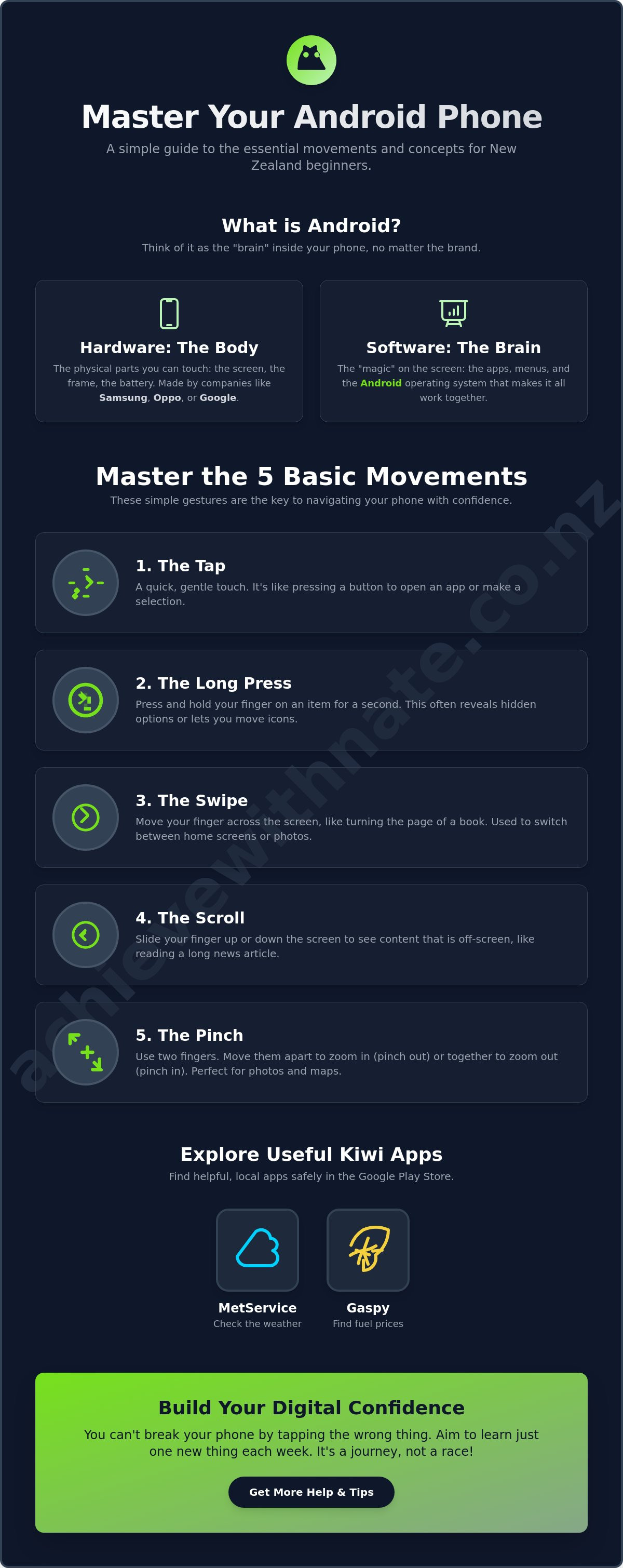
Understand that Android is simply the "brain" inside your phone, whether you use a Samsung, Oppo, or Google device.
Master the five essential movements, like the gentle tap and the long press, to navigate your screen without fear.
Learn Android phone basics for beginners nz to confidently make calls and save new contacts so you can stay in touch with friends and family.
Discover how to safely use the Play Store to find useful Kiwi apps like MetService or Gaspy without feeling overwhelmed.
Build your digital confidence by learning just one new thing each week in a stress-free, supportive way.
Table of Contents
Getting to Know Your Android Phone (The Gentle Handshake)
Think of your new phone as a helpful companion that's ready to make your life a bit easier. To start this journey, it helps to understand what's happening behind the glass. The Android operating system is essentially the brain inside your device. It's the invisible helper that manages your photos, sends your messages, and keeps your apps running smoothly. While the technology might seem complex, its main job is to listen to your touch and respond with exactly what you need.
You might notice that your friends have phones made by Samsung, Oppo, or Google. Even though the names on the back are different, they all share that same Android brain. It's similar to how different brands of cars all have a steering wheel and pedals in the same place. Once you understand the Android phone basics for beginners nz, you'll feel right at home on almost any device. This shared system is why so many Kiwis choose Android; it's flexible, reliable, and designed to grow with you.
To better understand this concept, watch this helpful video:
The Difference Between Hardware and Software
It's helpful to separate the physical phone from the programs inside it. Hardware is the "body" of the phone. It's the sturdy metal frame, the glass screen, and the battery inside. Software is the "magic" on the screen that makes the phone come to life. Because different companies make the hardware, your screen might look slightly different from your neighbor's. One might have rounder icons while another has square ones. Don't let this worry you. The core buttons and menus usually live in the same spots.
Waking Up Your Phone Safely
Waking up your device is like opening the front door to your home. Most phones have a physical power button on the side. A quick press will light up the screen. Some newer models even let you wake them up with a gentle double-tap on the glass. Once the screen glows, you'll see the "Lock Screen." Think of this as a safety gate. It protects your privacy and ensures that if you accidentally touch the phone in your pocket, it doesn't start making calls. You can unlock it using a simple PIN, a pattern you draw with your finger, or even your fingerprint. It's a small step that provides great peace of mind.
Finally, once you're past the lock screen, you'll land on the "Home" screen. This is your digital lounge. It's the central hub where your most-used apps sit, waiting for you to start your day. No matter how deep you go into a menu or an app, there's always a simple way to return here and start fresh.
Mastering the 5 Basic Movements (Your Step-by-Step Guide)
Now that you've met your phone, it's time to learn how to talk to it. You don't need to be a tech expert to master these five simple gestures. Think of these movements as a secret handshake that lets you control everything with ease. Understanding these Android phone basics for beginners nz will make using your device feel like second nature in no time.
The Tap: Think of the tap as a gentle "hello." You don't need to press hard. A quick, soft touch on an icon or button is enough to open it. It's like testing a cake to see if it's done.
The Long Press: This is like holding a door open for someone. If you press and hold your finger on an icon for a second, a little menu usually pops up. This is how you find "hidden" options or move icons around your screen.
The Swipe: Swiping is like turning the page of a book. Move your finger quickly across the screen from right to left to see the next page of apps.
The Scroll: This is for moving up and down. It's perfect for reading the morning news on Stuff or the NZ Herald. Just slide your finger up the screen to see what's tucked away at the bottom.
The Pinch: Place two fingers on a photo and spread them apart to zoom in. This is wonderful for seeing the fine details in photos of the grandkids or making small text much easier to read.
Practice Makes Perfect: The "No-Mistake" Philosophy
Mistakes are just a natural part of the learning process. You cannot actually break your phone by tapping the wrong thing. If you ever feel lost or end up on a screen that looks confusing, look for the "Back" button or gesture. It acts like a magical undo tool. If that doesn't work, simply find the "Home" button at the bottom to start over from your digital lounge. For those who want to see the technical foundations, you can explore the official Android user guides, but remember that hands-on practice is the best teacher.
If you'd like someone to sit with you while you practice these movements, our one-on-one digital coaching is a gentle way to build your confidence without any pressure.
Navigating the Quick Settings Menu
Swipe down from the very top of your screen to find the Quick Settings menu. It's where your most useful tools live. You can turn on the torch to find your keys in the dark or check your Wi-Fi connection. You can also adjust the screen brightness here so it's easier on your eyes during the day. If you want a quiet night, look for the "Do Not Disturb" icon. It will silence all those pings and beeps so you can enjoy some peace and quiet.
Staying Connected: Calls, Texts, and Contacts in NZ
Keeping in touch with friends and family is often the most rewarding part of owning a phone. Whether it's a quick chat or a long catch-up, your device is built to keep those connections strong. Once you understand the Android phone basics for beginners nz, you'll feel much more comfortable reaching out to the people who matter most. It's about hearing a familiar voice or seeing a photo of the garden without any of the usual tech stress.
To make your first call, look for the Green Phone icon. It usually lives in the bottom corner of your home screen. Tap it, and you'll see a keypad or a list of people. If you find it difficult to hold the phone to your ear for long periods, look for the "Speaker" button on the screen during a call. This lets you hear the other person clearly while the phone sits on the table in front of you. It's a great way to talk while you're making a cuppa or relaxing in your favorite chair. You can just enjoy the conversation without a tired arm.
When someone new calls you, it's a good idea to "save a mate" by adding them to your contacts. This means the next time they call, their name will appear on the screen instead of just a random string of numbers. To do this, tap on the number and look for "Add to Contacts." You can then type in their name and save it. It's just like writing in a physical address book, but much easier to find later. Texting is very similar. Just tap the message box and a keyboard will appear. Don't worry about being fast. Take your time and the words will follow.
Sending Photos to Family
Sharing a photo of your garden or a recent family gathering is a lovely way to stay close. In your messaging app, look for a small "Paperclip" or "Plus" icon. Tapping this will let you look through the photos stored on your phone. Once you find the right one, tap it and hit the send arrow. It's useful to know that sending photos uses "data" rather than a standard text message. If you're at home on your own Wi-Fi, this usually won't cost you anything extra, so feel free to share those special moments.
Managing Your NZ Mobile Plan
In New Zealand, most of us use Spark, One NZ, or 2degrees. Each of these companies has a way for you to check your balance so you don't run out of credit. You'll often hear people talk about "Minutes" and "Data." Minutes are for standard phone calls. Data is what your phone uses to look at websites or send photos when you aren't at home. If you'd like to feel more certain about these terms, our Device and Email Basics Training can help clear up any confusion.
Understanding these small differences will help you feel much more in control of your monthly spend. You don't need to be a math expert to keep track of things. Most providers send you a friendly text message when your balance is getting low. This ensures you're never caught off guard and can keep chatting with confidence.
Exploring the Play Store and Useful NZ Apps
The Google Play Store is your gateway to making your phone truly yours. When you're learning Android phone basics for beginners nz, it's easy to feel overwhelmed by the millions of choices available. Think of the Play Store as a safe, digital shop where you can find tools to help with your hobbies, health, and daily life in Aotearoa. Most of the most useful apps are completely free to download and use.
To find something specific, use the search bar at the top of the screen. You don't need to know the exact name; typing "weather" or "banking" will bring up plenty of options. Before you tap that download button, take a quick look at the "Star" ratings. We recommend sticking to apps with a rating of 4.0 or higher. Reading one or two reviews from other users can also give you peace of mind that the app is reliable and easy to use.
For life in New Zealand, a few essential apps can make your day run much more smoothly. MetService is a favorite for keeping track of our changeable weather. If you enjoy a trip away, the Air NZ app keeps your boarding passes in one place. Most importantly, your local banking app (like ANZ, ASB, or BNZ) allows you to check your balance from your armchair. These tools are designed to give you back your independence. If you'd like a hand setting these up for the first time, our one-on-one digital coaching provides a patient space to get everything ready.
Staying Safe When Downloading
Your safety is the top priority. Always ensure you only download apps from the official Play Store rather than random websites. Sometimes, an app might ask for "Permissions," such as access to your camera or your location. This is usually just so the app can do its job, like a maps app needing to know where you are to give directions. If a "Pop-up" ad appears on your screen claiming your phone has a virus, simply close it. These are almost always just tricks to get you to click. Your phone is very good at looking after itself.
Organizing Your Apps
Once you've found a few apps you love, you can move them to your front screen for easy access. Just use the "Long Press" we practiced earlier to drag the icon to a spot that suits you. If you ever download something and decide it's not for you, deleting it is just as simple. This keeps your digital lounge tidy and stress-free. For more tips on staying secure while exploring, you might enjoy our guide on Digital Confidence for NZ Seniors. Remember, you're in charge of your phone, and it's okay to take things one step at a time.
Building Your Digital Confidence One Step at a Time
Learning a new skill is a brave step, and you've already made wonderful progress by reading this guide. It's important to remember that mastering Android phone basics for beginners nz is a journey, not a marathon. You don't need to be an expert by tomorrow morning. It's perfectly okay to ask the same question three or four times. Most of us need to hear things more than once before they truly stick, and that's a natural part of the learning process.
Think of your phone like a new garden. You wouldn't expect every flower to bloom on the first day you plant them. You have to nurture it, one plant at a time. By focusing on small, manageable actions, you prevent that feeling of being overwhelmed. You deserve to feel proud of every small victory, whether it's successfully sending a photo or simply finding your torch in the dark.
When the Grandkids are Too Fast
We all love our families, but they aren't always the best teachers. Because they grew up with these devices, they often move at lightning speed. Their fingers fly across the screen before you can even see what they've tapped. This can leave you feeling more confused than when you started. It's okay to set a boundary for your own learning. Next time a family member tries to show you something, try saying: "Please let me hold the phone while you explain." When your own hands do the work, your brain remembers the movements much better than if you're just watching someone else do it for you.
How Nate Can Support Your Journey
Sometimes, you just need a patient person to sit beside you and walk through things at your own pace. Our one-on-one digital coaching is designed to be a safe, criticism-free space. We don't use big words or rush through menus. Instead, we offer personalized sessions that focus on the things you actually want to do. Whether you want to master our Device and Email Basics Training or just feel safer online, we're here to help.
There are no silly questions in our sessions. We focus on practical solutions that make your life in New Zealand easier and more enjoyable. If you're feeling stuck on a specific problem, we can untangle it together without any stress. Book a gentle introductory chat with Nate today to see how we can help you find your footing.
You are doing much better than you think. Every time you pick up your phone with a sense of curiosity, you're winning. Be kind to yourself as you grow, and remember that we are here to be your supportive companion every step of the way.
Your Path to Digital Independence
You've taken the first steps toward feeling steady and secure with your new technology. By understanding that your phone is simply a helpful tool with a shared brain, you've already cleared the biggest hurdle. Remember that the five basic movements we practiced are the keys to everything. Whether you're sending a photo to family or checking the morning weather, you're now in the driver's seat. Mistakes aren't permanent, and the Home button is always there to give you a fresh start.
Mastering Android phone basics for beginners nz is much easier when you don't feel rushed. If you'd like a supportive companion to walk beside you, we offer patient, one-on-one support across Aotearoa. Our coaching is designed specifically for seniors who want a criticism-free environment to learn at their own speed. We focus on making technology accessible and practical for your daily life so you can stay connected without the stress.
Ready to feel confident? Join Nate for a stress-free digital coaching session
Be patient with yourself as you continue to explore. You're doing better than you think, and every small tap is a victory. Take it one manageable step at a time.
Common Questions About Your Android Phone
How do I stop my Android phone from battery dying so fast?
Lowering your screen brightness is the most effective way to keep your battery going longer. You can also turn off features like Bluetooth or your torch when you aren't using them. If you are learning Android phone basics for beginners nz, you'll find that simple habits like closing unused apps can make a big difference. Try to keep your phone at a steady temperature to help the battery stay healthy.
Is it safe to do my banking on an Android phone in New Zealand?
Yes, it is very safe as long as you use the official app from your bank, such as ANZ, ASB, or Westpac. These apps use high-level security to protect your money and personal details. Just remember to never share your password with anyone. It is also a good idea to avoid doing your banking on public Wi-Fi at a cafe or library; use your home connection instead.
Why does my phone screen keep turning off while I am reading?
Your phone has a "Screen Timeout" setting designed to save battery by turning the display off when it thinks you aren't using it. You can easily change this in your settings menu to stay on for a longer time, like two or five minutes. This gives you plenty of space to finish reading a news article on Stuff or the NZ Herald without the screen going dark.
How do I make the text bigger so it is easier to read?
You can adjust the "Font Size" in your display settings to make the words as large as you need. This is a helpful part of Android phone basics for beginners nz because it removes the strain of squinting at small messages. You can slide the adjustment bar until the text is clear and comfortable. It's a simple change that makes a huge difference to your daily comfort.
What happens if I accidentally delete an icon from my home screen?
Don't worry, you haven't deleted the app itself, only the shortcut on your front screen. You can find all your apps by swiping up from the bottom of the screen to see your full list. Once you find the missing icon, just press and hold it to drag it back to your favorite spot. It's like putting a book back on its shelf after it has fallen off.
Do I need to pay for everything in the Google Play Store?
No, many of the most useful apps for Kiwis are completely free to download. Apps like MetService, WhatsApp, and your local library app don't cost a cent. If an app does cost money, the price will be clearly listed on the button before you tap it. You will always be asked to confirm before any payment is made, so there are no hidden surprises.
How do I connect my phone to my home Wi-Fi to save mobile data?
Swipe down from the top of your screen and tap the Wi-Fi icon to see a list of nearby connections. Select your home network name and type in the password found on the back of your Spark or 2degrees router. Once connected, your phone will use your home internet instead of your mobile data. This is a great way to stay connected without worrying about your monthly data limit.
What is the "Cloud" and do I need to worry about it?
The "Cloud" is simply a safe storage space on the internet where your phone keeps copies of your important things. It's like having a digital spare key for your photos and contacts. If you ever get a new phone, the Cloud makes it easy to move your memories over without any stress. It works quietly in the background, so you don't need to manage it every day.


Comments