


How to Print From Your Phone in NZ: A Stress-Free Guide (2026)

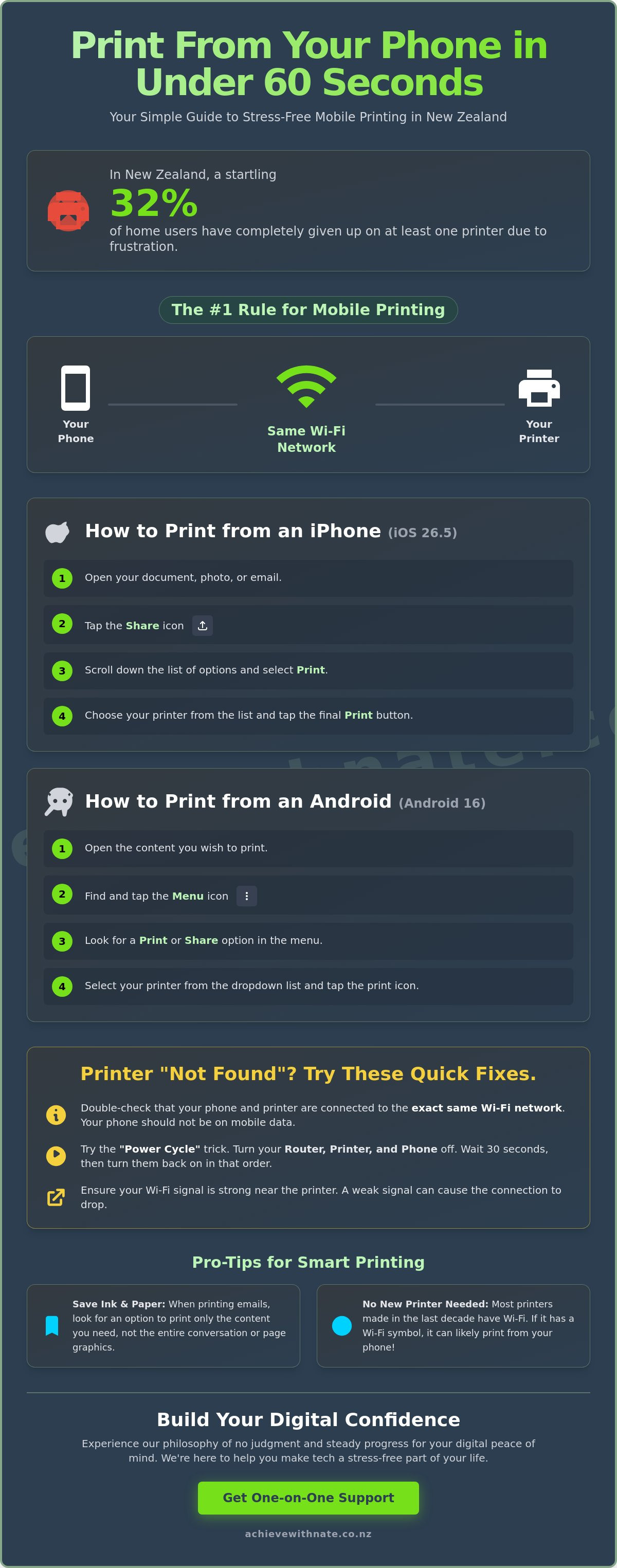
Did you know that 32% of home users in New Zealand have at least one printer they have completely given up on? It's a startling number, but it makes sense when you're stuck staring at a "printer not found" message. You just want to know how to print from my phone nz without the stress of wasting expensive ink or getting lost in jargon. We understand that tech can feel overwhelming. It often feels like the software updates change the rules the moment we finally get used to them.
Printing is really just a conversation between two devices; we just need to help them speak the same language. We promise that this guide will help you master mobile printing with a gentle, step-by-step approach designed for your peace of mind. We're going to look at the latest features in iOS 26.5 and Android 16 to get you printing photos or emails in under 60 seconds. We will also explain the "why" behind the connection so you can handle basic issues alone. It's time to make your technology a helpful, stress-free part of your Kiwi home.
Key Takeaways
Understand the invisible link between your Wi-Fi and your printer to stop the "device not found" frustration for good.
Follow our gentle guide on how to print from my phone nz to get your documents on paper in under a minute.
Learn the simple secret to finding a "shy" printer using its IP address without any confusing technical jargon.
Discover how to print only the email content you need, saving your ink and paper for what truly matters.
Experience the Achieve With Nate Movement philosophy of no judgment and steady progress for your digital peace of mind.
Table of Contents
Understanding the Basics of Mobile Printing in New Zealand
It is 2026, and we often expect our devices to just work together. Yet, when you are trying to figure out how to print from my phone nz, it can feel like your devices are speaking two different languages. Printing from a phone simply means sending a digital file, like a photo of the grandkids or a boarding pass, through the air to your printer. It is a quiet, invisible conversation between your handheld device and the machine sitting on your desk. Most of us now use cloud printing technology to bridge this gap without needing any messy cables or confusing adapters.
The most important thing to remember is that your phone and your printer need to be on the same page. In technical terms, this means they must be connected to the exact same Wi-Fi network. If your phone is using your mobile data while your printer is connected to your home Wi-Fi, they won't be able to "see" each other. It is like two people trying to have a chat while standing in different houses. Once they are both on your home network, the connection usually happens automatically.
To better understand how this connection works in practice, watch this helpful video:
Don't worry if your printer is a few years old. Many Kiwis think they need to buy a brand new machine every time they get a new phone, but that is rarely the case. Most printers made in the last decade have the right "ears" to hear a modern smartphone. As long as your printer has a Wi-Fi symbol on it, there is a very good chance we can get it working for you without any extra cost.
The Two Main Languages: AirPrint and Mopria
Your phone uses a built-in translator to talk to your printer. If you have an iPhone, this language is called AirPrint. It is designed to be very simple; you just tap the share icon and your printer should appear. If you use an Android device, the system usually uses something called Mopria or a "Default Print Service." The best part is that you usually don't need to download five different apps from the printer manufacturer. Your phone already knows how to print from my phone nz using these built-in tools, which keeps your device clean and fast.
Preparing Your Home Network for Success
If things aren't connecting, we always suggest starting with the "Power Cycle" trick. It sounds simple, but turning your router, printer, and phone off and back on again really does solve most issues. This gives every device a fresh start and a chance to find each other again. You should also check that your Wi-Fi signal is strong near your printer. If your router is in the lounge and the printer is tucked away in a back bedroom, the signal might be too weak to carry your print job. A steady, calm approach to your network setup is the first step toward digital confidence.
Step-by-Step: How to Print from Your iPhone or Android Device
Learning how to print from my phone nz shouldn't feel like solving a puzzle. Once your printer and phone are on the same Wi-Fi, the next step is simply finding the right button to press. Every app is a little different, but the symbols usually stay the same. It's perfectly normal to feel a bit of hesitation here. We're going to take this one step at a time so you feel completely in control of the process.
Printing from an iPhone (iOS 26.5)
If you're using an iPhone, your best friend is the "Share" icon. It looks like a small square with an arrow pointing straight up. You'll usually find it at the bottom of your screen in Safari or at the top of an email. Once you tap it, a list of options will slide up. You might need to scroll down quite a way to find the word "Print" near the bottom. It can be hidden behind other options, but it's always there waiting for you.
After you tap "Print," your phone will ask you to select a printer. Tap the "Printer" line at the top and wait a few seconds. Your home printer should appear in the list. If you're curious about where your document went after you sent it, you can swipe up from the bottom of your screen to see the "Print Center." This little window shows you exactly how much of the job is finished. If you find these steps a bit tricky, our Device and Email Basics Training can provide a patient helping hand.
Printing from an Android Device (Android 16)
For our Android friends, the process is just as straightforward. Instead of a square, look for three vertical dots in the top right corner of your app. This is your main menu. Tapping those dots will reveal a list of actions, including "Print" or sometimes "Share" then "Print." It is a good idea to check your settings to ensure the "Default Print Service" is toggled to the "On" position. This allows your phone to talk to most modern printers without any extra fuss.
A common hurdle is the "Save as PDF" trap. Sometimes, your phone thinks you want to save a digital file instead of using actual paper. If you see "Save as PDF" at the top of your screen, simply tap that text. A drop-down menu will appear, allowing you to select your actual printer instead. You can also find more detailed steps on how to print from an Android phone if you want to dive deeper into specific app settings.
Before you hit that final "Print" button, take a moment to look at the settings. You can often choose "Black & White" to save your expensive colour ink or "Double-Sided" to save paper. These small choices help you feel more confident about your resources. Once you tap "Print," listen for the comforting whirring sound of your printer starting up. That sound is the best confirmation that you've mastered the task. Taking these incremental, manageable actions is exactly how we build digital confidence together.
Troubleshooting Printer Connection Issues: When Your Phone Can’t "See" the Printer
It is incredibly frustrating when you've followed every step, but your printer simply won't show up in the list. You are not alone in this feeling. In fact, printer issues are the top source of home tech frustration in New Zealand. Around 32% of home users have at least one printer they have completely given up on. Most of the time, the machine isn't broken. It is just having a small communication breakdown. When you are trying to figure out how to print from my phone nz, the most common hurdle is a mismatch in Wi-Fi frequencies.
Modern NZ routers often use two different lanes: 2.4GHz and 5GHz. Your phone might be on the fast 5GHz lane while your printer is sitting on the 2.4GHz lane. Even though they are on the same home network, they are essentially in different rooms. If your phone says the printer is "Offline," it usually just means that invisible link has been temporarily interrupted. Another common issue is a digital traffic jam. If you've tried to print the same document five times, those jobs are all sitting in a "Print Queue." Clearing this list gives your printer a clean slate and stops the system from feeling overwhelmed.
Common Roadblocks and Simple Fixes
Sometimes your phone just needs a gentle nudge to look for the printer again. A quick trick is to toggle Airplane Mode on for ten seconds and then turn it off. This refreshes your phone's search for nearby devices without a full restart. We also suggest ignoring Bluetooth for this task. While Bluetooth is great for your headphones, it isn't usually the way phones and printers talk to each other in a home setting. You should also check your ink levels. Many printers will stop the entire process if just one colour is low, even if you only want to print in black and white.
Airplane Mode: Turn it on and off to reset the wireless search.
Network Check: Ensure both devices are on the same Wi-Fi name.
Ink Levels: A single low cartridge can often block the whole queue.
Advanced Troubleshooting Without the Stress
If your home router is acting up, you can try using "Wi-Fi Direct." This allows your phone to talk straight to the printer without needing the router at all. It is like a private conversation between two friends. If you are feeling stuck, you can print a "Network Configuration Page" by holding down the wireless button on your printer. This page will tell you exactly how the printer is feeling and what it is connected to. To find your printer's IP address, look at the small screen on the machine, tap the wireless icon, and write down the series of numbers that usually starts with 192 or 10. If these steps still feel a bit heavy, our One-on-One Digital Coaching is designed to help you through these moments with patience and kindness. We believe that no matter how fast technology moves, everyone deserves to feel capable and calm.
Practical Guidance: Printing Photos, Emails, and Web Pages
Once you've made that invisible connection, it's time to focus on the actual results. Getting a physical copy of a special memory or an important form should feel like a small victory, not a source of stress. We want to help you get it right the first time so you don't have to worry about wasting expensive paper or ink. Mastering the steps for how to print from my phone nz allows you to handle these tasks in under 60 seconds, making your technology work for your specific Kiwi life.
Making Your Prints Look Professional
When you're printing photos of the family or our beautiful scenery, the "Fit to Page" setting is your best friend. It ensures the whole image stays within the borders. If you've taken a wide shot of a sunset, remember to switch your settings to "Landscape" mode. This simple change prevents your photo from being shrunk down or cut off. It's a small adjustment that makes a massive difference in how your memories look on paper.
For those who prefer a traditional photo feel, 4x6 inch paper is the standard size. While home printing is convenient, sometimes it's helpful to know the local options for larger projects. For example, New Lynn Photos offers instant 4x6 prints for $1 each, while The Photo Hub starts at $1.49. If you're printing at home, a quick trip to Warehouse Stationery or Paper Plus will provide the right paper weights. For everyday documents, a standard 80gsm paper is perfect; however, for photos, you will want something a bit heavier and glossier to get that professional finish.
Printing from Government and Essential Apps
Many of us need to print forms for RealMe or the NZ Transport Agency. These documents often come as PDFs. If you aren't near your printer when you find the form, use the "Print to PDF" or "Save to Files" option on your phone first. This creates a digital copy you can print whenever you're ready. It keeps your records organized and ensures you never lose an important application.
For your emails, we've all experienced the frustration of a one-page message turning into a ten-page printout of old "Reply" history. To avoid this, look for the print icon specifically within your email app rather than the general phone menu. This usually selects just the most recent message. For web articles, try using "Reader View" in your browser. It removes the ads and bright banners, which keeps your ink levels healthy and your pages clean. If you'd like to feel more confident with these steps, our Device and Email Basics Training offers a patient way to master these everyday tasks. Taking these small, manageable steps is how we turn digital confusion into confidence.
Building Your Digital Confidence with One-on-One Support
Technology moves at a pace that can feel dizzying. One day things work, and the next day a software update changes the entire layout of your screen. It's perfectly okay to feel overwhelmed by these rapid shifts. We believe that asking for help is a sign of strength. When you're trying to figure out how to print from my phone nz, you shouldn't have to struggle through confusing menus alone. The Achieve With Nate Movement philosophy is built on a simple foundation: no judgment, just steady progress. We're here to act as a supportive companion on your journey toward digital independence, ensuring you feel seen and understood.
We understand that the digital world can sometimes feel like a place where you're expected to already know everything. That isn't fair. By creating a psychological safe space for learners, we help you move from initial distress to eventual empowerment. This isn't about becoming a high-tech authority overnight. It's about making your devices work for you, so you can spend more time enjoying life in Aotearoa and less time fighting with a printer dialogue box. We want to help you find your footing without ever making you feel inadequate.
Personalized Help for Your Home Setup
Having a mentor visit your home or guide you through a session changes everything. Nate works with you to ensure your printer is set up correctly the first time. This isn't just about fixing a machine; it's about device and email basics training that truly sticks. A digital confidence coach NZ is very different from a standard repair shop. We don't just take the device away and fix it in a back room. We sit with you and explain the "why" behind the connection. This hands-on guidance replaces formal corporate speak with plain language you can actually use.
Ready to Stop Struggling with Your Printer?
You deserve to feel confident using your own devices. Imagine the relief of being able to print a photo or an important form without having to wait for the grandkids to visit and do it for you. It's about reclaiming your independence. We offer a low-pressure environment where you can learn at your own pace. There is no rush and no pressure to perform. We simply move through the steps of how to print from my phone nz until they feel natural to you.
If you're ready to stop the frustration and start feeling capable, we invite you to take that first manageable step. You can fill out our Expression of Interest form to start your journey today. We can have a low-stakes chat about your goals and see how our one-on-one digital coaching can help. Let's work together to make your technology a helpful, stress-free part of your life. Taking incremental, manageable actions is the key to lasting confidence.
Take the Next Step Toward Digital Independence
You have discovered that printing is really just a quiet conversation between your devices. By making sure they are both on the same Wi-Fi and using the simple, built-in tools we've discussed, you can move past the "device not found" messages that cause so much stress. You now have a clear path to print your favorite photos and essential documents in under a minute. Mastering how to print from my phone nz is a significant step toward feeling completely at home in our digital world.
If technology still feels a bit like a hurdle, please know that you don't have to jump it alone. We provide patient, non-judgmental coaching specifically for Kiwis who want to build their skills in a safe space. We offer in-home or online support across New Zealand, focusing entirely on your personal goals and long-term confidence. Our mission is to help you feel seen and supported as you learn. You can book a gentle, one-on-one session with Nate to master your tech today. Taking small, manageable actions is the best way to turn confusion into clarity. You are doing a great job.
Common Questions About Mobile Printing in New Zealand
Why does my phone say "No AirPrint Printers Found"?
This message usually appears because your printer has gone into a deep sleep mode to save power. When this happens, it stops listening for your phone. A quick press of the power button on the printer to wake it up often solves the problem instantly. This is a common hurdle when learning how to print from my phone nz for the first time.
Can I print from my phone if I don’t have a Wi-Fi router?
Yes, you can still print using a feature called Wi-Fi Direct. This allows your phone to talk straight to the printer without needing a middleman like a standard home router. You simply look for your printer's name in your phone's Wi-Fi list and connect to it directly. It is a wonderful way to keep things moving if your internet is acting up or if you live in a rural area with a patchy connection.
How do I print a double-sided document from my Android phone?
After you select your printer and see the preview screen, tap the small down arrow to reveal "More Options." You will see a toggle or checkbox for "Two-sided" or "Duplex" printing. Simply tap that to turn it on before hitting the final print button. It is a great way to save paper and keep your documents feeling organized and professional without any extra effort.
Is it safe to print sensitive documents like bank statements from my phone?
It is perfectly safe to print sensitive items as long as you are using your private home Wi-Fi. Your home network is a protected space where your data stays between your phone and your printer. We suggest avoiding public Wi-Fi at cafes or libraries for these tasks. If you are ever unsure about how to print from my phone nz securely, sticking to your own living room is the best rule of thumb for your peace of mind.
Why is my phone printing in the wrong size or cutting off the edges?
This usually happens when the paper size selected in your app doesn't match what is actually sitting in your printer tray. Many apps default to "Letter" size, which is slightly different from the "A4" paper we use here in New Zealand. Check the settings menu on your phone screen to ensure "A4" is selected. You should also look for a "Scale to Fit" option to make sure your whole document fits neatly on the page.
Do I need a special app for every brand of printer (HP, Canon, Brother)?
No, you generally don't need a specific app for each brand. Modern smartphones are designed with built-in translators that understand most major printer brands automatically. While companies like HP or Epson offer their own apps, they often add unnecessary steps and clutter to your phone. Using the built-in "Print" option in your phone's menu is usually the simplest and most reliable way to get the job done.
How can I print from my phone to a printer that isn’t wireless?
You can connect your phone to an older printer using a small adapter called a "USB OTG" cable. This cable plugs into your phone's charging port on one end and your printer's USB cord on the other. Once they are physically joined, your phone will usually recognize the printer just like a wireless one. It is a handy way to keep using a perfectly good machine that might be a bit older than the latest models.
What should I do if my print job is "stuck" and won’t come out?
The best first step is to cancel the job from your phone's Print Center or Print Queue. After that, turn your printer off at the wall for ten seconds and then turn it back on. This clears the printer's temporary memory and gives it a fresh start. It is much better than pressing the "Print" button over and over, which only creates a bigger digital traffic jam and wastes your time.


Comments