


How to Set Up a New iPhone for a Senior: A Gentle, Step-by-Step Guide

Imagine sitting down with a brand new iPhone 17, feeling that familiar pinch of worry that one wrong tap might break something important. It's a common feeling for many of our older neighbors in New Zealand who simply want to see their grandkids' faces on a clear screen without the digital clutter. You've likely felt the frustration of tiny icons that are hard to see or constant pings that feel more like a nuisance than a help. It's completely normal to feel overwhelmed when a tool meant for connection feels like a barrier instead.
This guide shows you exactly how to set up a new iphone for a senior by stripping away the noise and focusing on what truly matters. We'll help you transform that complex device into a gentle, reliable companion that keeps you safe and confident. We will walk through enlarging text for better visibility, silencing those pesky alerts, and setting up the Govt.nz app so your essential services are always right where you need them. You'll learn how to make video calling a breeze and ensure your browsing stays private and secure, all at your own pace. Let's take this one manageable step at a time.
Key Takeaways
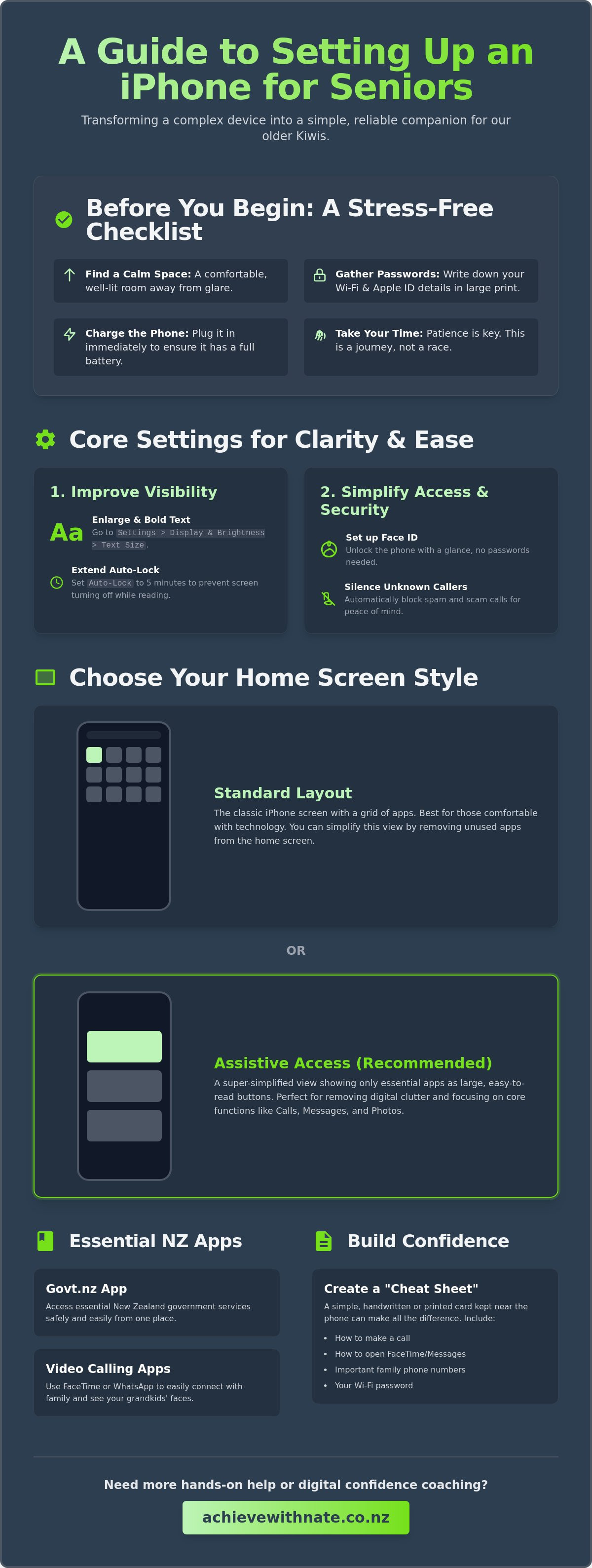
Start in a calm, quiet space with your passwords ready to make the process feel like a peaceful activity rather than a chore.
Discover how to set up a new iphone for a senior by adjusting visibility settings and FaceID to remove the stress of small text and forgotten codes.
Decide between the standard layout or Assistive Access to create a simplified screen that only shows the apps you truly use.
Identify the most helpful New Zealand apps for staying connected with family and managing your government services safely.
Learn how to create a simple "cheat sheet" that helps you or your loved one feel capable and in control of the new device.
Table of Contents
Preparing for a Stress-Free iPhone Setup
Before you even touch the box, take a deep breath. Learning how to set up a new iphone for a senior starts with the environment, not the electronics. It's about creating a space where you feel safe to explore. Find a comfortable chair in a well-lit room, ideally away from the glare of a direct window. Plug the phone into its charger right away. A full battery ensures the device won't shut down in the middle of an update, which can be a major source of unnecessary stress.
Gather your essentials before you begin. You'll want your Wi-Fi password and your Apple ID details written down in clear, large print. If you don't have an Apple ID yet, don't worry; we can create one together during the process. Most importantly, make a cup of tea. Having a warm drink nearby reminds you that this is a slow, steady process. Patience is your most valuable tool here. You aren't just setting up a phone; you're opening a new door to your family and friends.
To see these first steps in action, this helpful video walk-through is a great place to start:
The Emotional First Step
It's perfectly normal to feel a bit of "tech-anxiety" when holding a new device. Many of our older Kiwis worry about pressing the wrong thing or accidentally breaking the system. You can't break it. Give yourself permission to take as long as you need. There is no rule saying this must be finished in ten minutes. If you feel your frustration rising, simply put the phone down and come back to it later. This is where digital confidence coaching makes such a difference. It turns a scary task into a supported journey with a friend who understands the local landscape and values your well-being over the software itself.
Physical Comfort and Visibility
The physical feel of the phone matters just as much as what's on the screen. A sturdy case with a textured grip helps those with less steady hands feel more secure. If your eyes are sensitive to light, consider a matte screen protector to cut down on reflections. Before you turn the power on, ensure your SIM card is ready for your New Zealand network. This ensures your phone can make calls and send texts immediately without troubleshooting later. While modern iOS accessibility features can fix many visibility issues through software, starting with a clear, comfortable physical setup prevents early fatigue. You're now ready to begin the digital journey with confidence.
Core Settings for Better Visibility and Ease
When you first look at the home screen, it might feel like there's too much going on. Knowing how to set up a new iphone for a senior is mostly about turning off the things you don't need and making the things you do need much bigger. We want a screen that's easy on the eyes and buttons that are easy to tap. By making a few small adjustments, the phone stops being a puzzle and starts being a helpful tool.
Typing in a six-digit code every time you want to check a message can be fiddly and frustrating. Setting up FaceID is a wonderful way to bypass this. The phone simply recognizes your face and unlocks itself. It's a small change that removes a big hurdle. We also want to protect your peace of mind. By going into your Phone settings and choosing "Silence Unknown Callers," you can stop those pesky scam calls before they even ring. If a number isn't in your contacts, the phone stays quiet. It's a simple way to feel safe from the very first day.
Step-by-Step Display Adjustments
To make the screen more readable, follow these simple steps. These changes help letters stand out clearly against the background and ensure you have plenty of time to look at what's on the screen.
Text Size and Bolding: Go to Settings, tap Display & Brightness, and then Text Size. Slide the circle to the right until the letters are clear. Go back one screen and toggle on Bold Text for even better definition.
Auto-Lock: It's frustrating when the screen turns black while you're still reading. In the same Display & Brightness menu, change Auto-Lock to 5 minutes. This gives you plenty of time to read at your own pace.
Simplifying Navigation
Modern iPhones have many features that can lead to accidental taps. Cleaning up the home screen makes the device much friendlier to use.
Display Zoom: This is a game changer. In Display & Brightness, scroll to the bottom and select Display Zoom. Choose "Larger Text" to make everything from icons to buttons bigger and easier to press.
Home Screen Cleanup: You can remove the "Search" button from the bottom of the home screen in the Home Screen & App Library settings. This prevents you from accidentally triggering a search when you just want to swipe between pages.
Turn off Raise to Wake: This prevents the phone from turning on every time you move it. It saves battery and makes the phone feel more predictable.
If these menus feel a bit like a maze, Nate's one-on-one digital coaching can help you get these settings just right. We can walk through each step together until the phone feels exactly how you want it.
Standard Mode vs. Assistive Access: Which is Right?
Choosing the right "look" for the phone is a big part of how to set up a new iphone for a senior. Apple offers two main ways to see your screen. One is the standard look you see in most shops. The other is a special, simplified version called Assistive Access. There is no right or wrong choice here. It simply depends on what makes you feel most comfortable and capable. Every learner is different, and your phone should reflect your specific needs.
Assistive Access turns the phone into a high-contrast grid with very large buttons. It removes the complex menus and tiny icons that often cause frustration. This is a wonderful choice if you mainly want to call family, send a quick text, or take photos of the garden. It creates a "safe space" where you can't accidentally change deep settings or get lost in a maze of apps. Standard Mode is the classic iPhone layout. With the visibility tweaks we made earlier, this mode is often perfect for those who want to explore a bit more. It feels like a full smartphone experience but with the edges softened.
If you choose Assistive Access, you will need to set an "Exit Passcode." This is a special code that lets you go back to the standard settings. Think of it as a safety net. It ensures that your simple layout stays exactly as you like it. It prevents any accidental changes that might make the phone feel confusing again. We want you to feel in control of your device at all times.
When to Use Assistive Access
Assistive Access was introduced in iOS 17 to simplify the user experience for those who find standard menus overwhelming. We can pick exactly which apps appear on the screen. If you only use three things, only three things will show up. This removes the digital noise entirely. It's a peaceful way to stay connected without the pressure of learning a whole new system. It's about making the technology fit your life, not the other way around.
Optimizing the Standard Experience
If you prefer the standard look, we can still make it much simpler. We can move all your apps into a single home screen. This means there are no extra pages to swipe through. We use the App Library to tuck away apps you don't need, like stocks or complex settings. We also practice the "swipe up" to go home and the "swipe down" for your messages. Taking it one gesture at a time makes the standard experience feel just as safe and manageable as the simplified one.
Essential New Zealand Apps for Digital Independence
Setting up the phone is about more than just the screen. It is about opening your world. Once you understand how to set up a new iphone for a senior, the next step is choosing the right tools for life in Aotearoa. We only want apps that make your day easier. No clutter. No confusion. Just the essentials for staying in touch and staying safe. We want you to feel like you have everything you need right in your pocket.
In New Zealand, we rely on specific services to keep things running smoothly. We can install your local banking app, whether you are with ANZ, BNZ, ASB, or Kiwibank. Using the FaceID we set up in the previous section, you can check your balance or pay a bill without typing a single password. We can also add the Govt.nz app. This tool, launched in December 2025, lets you access government services safely. From June 2026, it even includes a digital wallet for your credentials. It's a safe, modern way to keep your important information in one place without the worry of losing physical cards.
Staying Connected with Family
Seeing your family's faces is often the best part of having an iPhone. We can set up FaceTime or WhatsApp so you can see the grandkids with one tap. By pinning your favorite contacts in the Messages app, their photos will always stay at the top. You won't have to scroll through a long list of names to find your daughter or your best friend. We can even create a shared family photo album. When your children take a photo of the kids, it will appear on your phone automatically. For more tips on this, read our guide on NZ seniors and digital confidence.
Safety and Security Apps
Your phone is also a powerful safety tool. We will make sure MetService is on your home screen so you can plan your garden time around the weather. We also ensure Emergency SOS is ready. In New Zealand, this feature is set up to call 111 and alert your family if you ever need help. We also recommend the LifeCurve app, developed with the Bay of Plenty District Health Board. A 2021 study showed that staying active helps reduce healthcare costs by about $1400 per person each year. This app helps you monitor your daily activities to stay independent for longer. Finally, we turn on "Find My." If you ever misplace your phone, a family member can help you find it from their own device. Don't forget to add the SuperGold app to find local discounts while you are out and about.
If you are worried about which apps are safe to download, our One-on-One Digital Coaching can give you peace of mind. We can sit down together and install only what you need, ensuring every app is set up securely and simply.
The Handover: Building Confidence for the Long Term
Once the settings are adjusted and the apps are installed, the most important part begins. Learning how to set up a new iphone for a senior is only half the battle. The other half is ensuring you feel capable of using it when no one else is in the room. It is very tempting for a family member to simply "do it for you" because it is faster. However, this often leads to more anxiety later. When someone else takes the phone out of your hands, it sends a silent message that the device is too difficult for you to handle. That simply isn't true.
Real confidence comes from doing. We recommend creating a simple, handwritten "cheat sheet" for the three tasks you will do most often. This might be opening FaceTime to see the grandkids, checking the MetService app, or sending a photo in a message. Keep this note on the fridge or near your favorite chair. It acts as a gentle safety net. We also suggest a weekly "tech check-in" with a friend or family member. This shouldn't feel like a classroom lesson. Make it a chat over a biscuit. Talk about a new photo you saw or a news story you read on the RNZ app. It keeps the technology integrated into your life rather than sitting on a shelf.
The "Watch One, Do One" Method
The best way to learn a new digital skill is through a simple rhythm. First, watch someone demonstrate the task. Then, immediately try it yourself while they watch you. This helps your brain and hands work together to build a new habit. Don't be afraid to make mistakes. You cannot "break" the internet or ruin the phone by tapping the wrong icon. Every small win, like successfully sending an emoji or clearing a notification, is a step toward total independence. We celebrate every single one of those wins.
Ongoing Support with Nate
Sometimes, learning from family can be a bit stressful for everyone involved. It is easy for frustrations to bubble up when a loved one is trying to explain something they find "easy." This is why one-on-one digital coaching is so helpful. It removes the family friction and provides a patient, non-judgmental environment. We can move at your pace, starting with the basics of how to set up a new iphone for a senior and moving toward more advanced skills. You might want to learn how to scan a document for the bank or how to use the new Apple Intelligence features to summarize long emails. The ultimate goal is not just a working phone. It is a more connected, confident life in our digital world. Take it one manageable step at a time.
Embracing Your Digital Journey with Peace of Mind
You now have the foundation to turn a piece of glass and metal into a warm bridge to your loved ones. We've walked through the essential steps of how to set up a new iphone for a senior, from enlarging text for tired eyes to choosing the right local apps like MetService and the Govt.nz app. By focusing on your emotional well-being first, you've already overcome the biggest hurdle. Technology should never feel like a test you're failing. It's simply a new way to stay close to the people who matter most in your life.
If you still feel a little unsure, you don't have to navigate this alone. We provide patient, non-judgmental support right here in New Zealand to help you feel completely at home with your device. You can book a gentle one-on-one session to master your new iPhone today. Our coaching is designed to be a safe space where your safety and confidence always come first. Remember that every expert was once a beginner. By taking these incremental, manageable actions, you're reclaiming your digital independence. You've got this.
Frequently Asked Questions
How do I make the icons on the iPhone screen larger for a senior?
You can make icons and text larger by using the Display Zoom feature found in your settings. Simply go to Settings, tap Display & Brightness, and scroll down to Display Zoom to select the Larger Text option. This adjustment makes every icon and button much easier to see and tap. It is a wonderful way to begin learning how to set up a new iphone for a senior so the screen feels less crowded and more inviting.
What is the best iPhone model for a senior to use in 2026?
The iPhone 17 is currently considered the best model for most users in 2026 because of its bright, clear screen and reliable battery life. If you are looking for a more affordable entry-level option, the iPhone 17e is a fantastic choice that still supports all the latest safety features. Both models work beautifully with the newest accessibility settings, ensuring you have a device that feels steady and easy to handle every day.
Can I restrict an iPhone so settings don’t get changed accidentally?
Yes, you can use a feature called Screen Time or the Assistive Access mode to lock important settings in place. This prevents you from accidentally deleting an app or changing your ringtone volume. By setting a simple "Exit Passcode," you can explore your phone with the confidence that your main setup will stay exactly as you like it. It provides a digital safety net that removes the fear of making a mistake.
How do I set up an Apple ID for someone who doesn’t have an email?
Every Apple ID needs an email address, but the phone can help you create a free iCloud email during the initial setup. You don't need to worry about having an existing account before you start the process. This keeps your new digital life simple and contained within one device. It is a gentle way to get connected without the stress of managing multiple passwords or complicated accounts from the very beginning.
Is FaceID safe and easy for seniors with glasses or hearing aids?
FaceID is incredibly safe and works very well for those who wear glasses or hearing aids. The phone uses clever technology to recognize your face even if you change your frames or put on a hat. This feature is often much easier than trying to type a tiny passcode with less steady hands. Understanding how to set up a new iphone for a senior includes using these tools to make the phone feel like a natural part of your life.
How can I stop my elderly parent from getting scam calls on their iPhone?
The most effective way to stop scam calls is to enable the "Silence Unknown Callers" feature in the Phone settings. This ensures that any call from a number not in your contacts goes straight to voicemail without ever ringing. It allows you to check your messages at your own pace without the pressure of answering a stranger. This simple setting acts as a protective shield for your peace and digital safety.
What happens if we forget the passcode to the iPhone?
If a passcode is forgotten, the phone must be reset to its factory settings to protect your private information. This is why we always recommend writing your passcode on a physical "cheat sheet" kept in a safe place at home. If you have an iCloud backup, your precious photos and messages can be restored after the reset. It is a bit of a hurdle, so having that written backup is a very helpful safety net.
Does Apple offer senior-specific training in New Zealand?
Apple provides general "Today at Apple" sessions in their stores, but they don't offer specialized, one-on-one coaching for seniors across New Zealand. Many people find these group sessions a bit fast or overwhelming. A local digital coach can provide a much more patient, neighborly experience in a quiet environment. This personal approach ensures you get the specific help you need without the noise and pressure of a busy retail shop.


Comments