


Smartphone Basics for Beginners: A Simple Guide for Everyday Kiwis

Imagine sitting at your kitchen table in Tauranga, staring at a glass screen that feels more like a puzzle than a tool. You want to see your grandkids' faces on a video call, but the fear of pressing the wrong button and "breaking" something keeps your hand still. Many New Zealanders over the age of 65 feel this same hesitation every day.
It's frustrating to feel behind or overwhelmed by a device that's supposed to make life easier. You deserve to feel capable and independent when using technology. This guide on smartphone basics for beginners nz will show you how to master your device with clarity and intention. We'll strip away the jargon to focus on what actually adds value to your daily life.
You'll learn how to navigate local apps like MyIndici or your banking portal while keeping your personal information secure. We're going to walk through a simple, step-by-step process to help you manage your phone so it serves you, rather than the other way around.
Key Takeaways
Gain clarity by understanding the physical buttons and ports that form the foundation of your device.
Learn the "language of touch" to navigate your screen and organize your home screen for a more intentional experience.
Master the essential communication tools you need to stay connected with your loved ones through calls and photos.
Secure your digital life by learning to identify common NZ-specific scams with these smartphone basics for beginners nz.
Simplify your daily routine by downloading the five essential apps designed for practical New Zealand living.
Table of Contents Understanding Your Smartphone: The Foundation of Digital Confidence Navigating the Screen: Essential Gestures for Beginners Essential Communication: Connecting with Family and Friends Intentional Security: Staying Safe in the NZ Digital Landscape Practical NZ Apps: Building Your Digital Independence
Understanding Your Smartphone: The Foundation of Digital Confidence
You are holding a tool designed for intentional living. A smartphone is no longer just a device for making calls. It is a pocket-sized computer that helps you manage your time, your health, and your connection to the world. When you master smartphone basics for beginners nz, you gain the freedom to navigate modern life with clarity and ease.
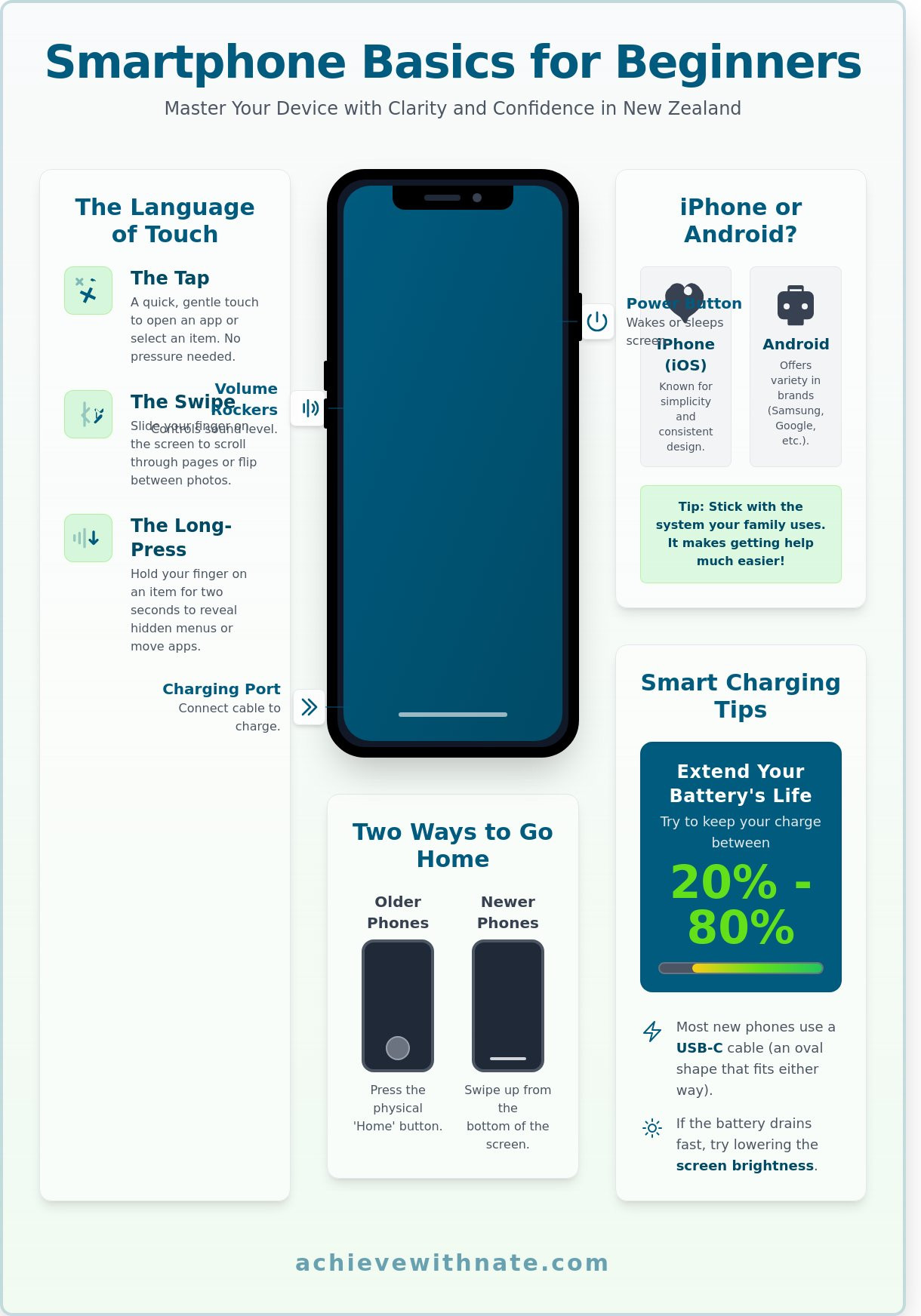
Every device has a few physical landmarks. The power button usually sits on the right side. You use it to wake the screen or turn the device off. Nearby, you will find the volume rockers. These two buttons control how loud your ringtone or music sounds. At the bottom of the device, there is a small port. This is where you plug in your charging cable. Understanding these physical parts is the first step toward digital agency.
To truly understand the history and technical shift of these devices, you can explore the question: What is a Smartphone? Essentially, it is a multipurpose tool that replaces your camera, calendar, and map. It simplifies your physical world by consolidating these items into one slim frame.
Navigation has changed over the years. Older phones used a physical "Home" button at the bottom center. Pressing it always took you back to the main screen. Newer phones use gesture navigation. You simply swipe up from the bottom edge of the screen to go home. If you ever feel lost, remember that a single swipe or a button press is your "reset" to a familiar starting point.
It is helpful to distinguish between your hardware and your service. Your device is the physical object made by companies like Apple or Samsung. Your service provider is the company that gives you a signal, such as Spark, One NZ, or 2degrees. You own the tool, but you subscribe to the network. Keeping these concepts separate helps you troubleshoot problems with more confidence.
Android vs. iPhone: Choosing Your System
New Zealanders typically choose between two systems: iOS (iPhone) or Android (Samsung, Google, or Oppo). iPhones are known for their simplicity and consistent design. Android phones offer more variety and different price points. If you are learning smartphone basics for beginners nz, consistency is your best friend. Stick with the system your family or friends use. This makes it easier to ask for help when you need it. You can identify your system by looking at the back of the phone. An apple icon means it is an iPhone. Any other brand name usually means it runs Android.
The Battery and Charging: Keeping Your Tool Ready
Your battery is the lifeblood of your device. To ensure sustainability, try to keep your charge between 20% and 80%. Charging your phone to 100% every single night can wear out the battery over several years. You will likely use a USB-C cable, which is the standard for most new phones. Older iPhones use a "Lightning" cable. If your phone dies faster than expected, it is often because the screen brightness is too high or too many apps are running. Stay calm if the screen goes black. Plug it in, wait five minutes, and your digital system will be ready to support you again.
Navigating the Screen: Essential Gestures for Beginners
Your smartphone responds to the physical language of your hands. Mastering these movements creates a sense of control and reduces the frustration of "wrong turns" on your device. Learning smartphone basics for beginners nz starts with understanding that your screen is sensitive. You don't need to apply pressure. A light, intentional touch is all that is required to navigate your digital world with clarity.
Mastering the Basic Gestures
Step 1: The Tap. This is the most common action. Briefly touch an icon or button with your fingertip. It is a quick contact, similar to clicking a mouse. Avoid "poking" the screen with force. A gentle tap is enough to open your messages or select a photo.
Step 2: The Swipe. Place your finger on the screen and slide it in any direction. Swipe left or right to flip through photos in your gallery. Swipe up or down to read through a long news article. This movement should be fluid and steady.
Step 3: The Long-Press. Hold your finger on an item for two seconds without lifting it. This action usually reveals hidden menus. On many devices, a long-press on an app icon allows you to move it or see specific shortcuts. It is a tool for deeper interaction beyond the surface level.
Organising Your Digital Space
Digital clutter creates mental friction. You should treat your home screen like a well-organised desk. Only keep the tools you use daily on your main screen. You can move apps by long-pressing them and dragging them to a new position. Place your most frequent tools, like your phone dialler or camera, at the bottom of the screen for easy access.
Grouping apps into folders is a simple way to maintain order. Drag one app icon directly on top of another to create a folder. You might label one "Finance" for your ANZ or ASB banking apps, and another "Utilities" for your electricity and mobile provider tools. If you haven't opened an app in 90 days, delete it. This subtraction creates room for intentional living and ensures your phone remains a tool for freedom rather than a source of distraction.
Stop scrolling through multiple pages to find a specific tool. Use the search function instead. On most phones, swiping down from the middle of the home screen reveals a search bar. Type the first two letters of the app you need. This system saves time and keeps your focus sharp.
Finally, prioritise your physical comfort. Go to your settings and look for "Display." Many Kiwis find that increasing the font size to 120 percent significantly reduces eye strain. You should also enable "Auto-Brightness." This allows your phone to adjust its light levels based on your surroundings, which helps preserve your battery life and your vision. These small adjustments are essential smartphone basics for beginners nz that make technology feel like a natural extension of your daily life.
Essential Communication: Connecting with Family and Friends
Your smartphone is a tool designed to foster connection. It simplifies the way you reach out to those who matter most. The "Phone" app is the heart of this experience. It usually features a green icon with a handset shape. To make a call, tap the icon and use the keypad to dial a number. If you receive a call, a simple swipe on the screen allows you to answer. These smartphone basics for beginners nz are the first steps toward digital confidence.
Texting allows for quick, quiet updates. Open the "Messages" app to type a note. You can also share photos by tapping the small plus or camera icon within the message. This is a great way to send a quick snap of your garden or a family pet to your children. Managing your contacts is another essential habit. When you save a number with a name, your phone tells you exactly who is calling. This clarity prevents the stress of answering unknown numbers and keeps your digital life organized.
Staying Connected via Wi-Fi and Data
Understanding how your phone accesses the internet is vital for managing costs. Wi-Fi is a local wireless network, usually found in your home or at a library. Connecting to your home Wi-Fi is safer and doesn't cost extra. When you leave home, your phone uses mobile data. This is a set amount of internet access provided by your mobile plan. To keep your expenses low, turn off mobile data in your settings when you don't need it. For a reliable home connection, Skinny Broadband provides simple plans starting at approximately NZ$40 per month. This intentional choice ensures you stay connected without overcomplicating your monthly budget.
Video Calling Basics
Video calls bring a personal touch to your conversations. You can use tools like FaceTime for Apple devices, or WhatsApp and Messenger for any smartphone. These apps allow you to see your loved ones in real time. For the best experience, place your phone on a steady surface at eye level. This creates a natural view and avoids a shaky image. Position yourself facing a window so the light is on your face. When the chat is over, always tap the red "End Call" button firmly. This simple action protects your privacy and ensures your camera is no longer active. Mastering these smartphone basics for beginners nz helps you maintain deep, meaningful relationships from the comfort of your home.
Intentional Security: Staying Safe in the NZ Digital Landscape
Digital security is rarely about complex codes or high-tech software. It's about your daily habits. You don't need to be a tech expert to stay safe. You just need a simple system to protect your data and your peace of mind.
True security begins at the lock screen. Mastering smartphone basics for beginners nz involves choosing a lock method that balances speed with safety. A six-digit PIN is significantly more secure than a four-digit one. If your phone supports it, use fingerprint or face recognition. These biometrics offer a seamless way to access your device while keeping your personal information private.
You should view your phone as a private vault. You wouldn't leave your front door wide open in the middle of Auckland or Christchurch. Don't leave your digital door open either. Setting up these basic locks is the first step toward intentional living in a digital world.
Spotting and Avoiding Scams
Scams in New Zealand are becoming more sophisticated. CERT NZ reported 2,001 cyber security incidents in the third quarter of 2023 alone. Many of these involve "smishing" or fraudulent text messages. You might receive a message claiming to be from NZ Post about a missed parcel or from the IRD regarding a tax refund. These messages often create a false sense of urgency.
Stop: Take a breath. Scammers want you to act fast without thinking.
Look: Check the sender's number. Does it look like a standard NZ mobile number instead of an official short code?
Think: Would the bank really text you a link to log in? No. Your bank will never ask for your password or PIN via a text link.
If you accidentally click a suspicious link, don't panic. Immediately put your phone in "Airplane Mode" to cut the connection. Contact your bank using their official phone number found on their website or the back of your debit card.
Managing Notifications for Peace of Mind
Your smartphone should be a tool that serves you; not a master that demands your attention. Most apps are designed to steal your focus with "noisy" notifications. These constant pings create a sense of clutter in your mind. You have the power to say "No" to these interruptions.
Go into your settings and audit your notifications. Keep the essentials, like calls from family or calendar alerts. Turn off the rest. Use the "Do Not Disturb" mode to reclaim your quiet time. You might set it to activate automatically at 9:00 PM every night. This simple boundary supports a more sustainable lifestyle and allows you to focus on what truly matters.
Building better digital habits leads to long-term freedom and clarity. Learn more about creating intentional systems for your daily life.
Practical NZ Apps: Building Your Digital Independence
Your smartphone is a tool for freedom. To begin using it effectively, you must learn to download apps safely. Only use the Google Play Store on Android or the Apple App Store on an iPhone. These official platforms vet every piece of software for security risks. Avoid clicking links in text messages that ask you to install files. Stick to the official stores to keep your personal data protected.
Mastering smartphone basics for beginners nz starts with choosing tools that simplify your daily life. You don't need dozens of icons on your screen. A minimalist approach is better. Focus on the five essential services that provide the most value for your lifestyle in New Zealand.
Essential Apps for Life in New Zealand
Five apps stand out as vital for every Kiwi. Your banking app is the first priority. Whether you bank with ANZ, ASB, BNZ, or Westpac, these apps are typically safer than using a web browser on a computer. They use built-in security like your fingerprint or face recognition to verify your identity. This creates an isolated, secure environment for your money.
RealMe: This is the official New Zealand identity tool. It allows you to access government services like the DIA for passport renewals or StudyLink without needing multiple passwords.
ManageMyHealth: This app connects you to HealthNZ services. You can book appointments, request repeat prescriptions, and view your latest lab results from your phone.
MetService: New Zealand weather changes quickly. This app provides the most accurate local forecasts and rain radar for your specific suburb.
Google Maps: Use this for turn-by-turn driving directions or to find the opening hours of a local business in your town.
Banking on your phone reduces your exposure to email scams. You interact directly with the bank's encrypted system. It's a cleaner, more intentional way to manage your financial life.
The Path to Digital Confidence
Learning these systems takes time. It's normal to feel a bit lost during the first few weeks. The key is consistent, small actions. You don't need to learn every feature in a single afternoon. Practice opening your weather app once a day. Check your bank balance twice a week. These small habits build a foundation of self-reliance.
If you feel stuck, don't hesitate to seek guidance. Some people find that a structured approach works best. You can explore Digital Confidence Coaching to receive personalized support designed for everyday Kiwis. This service helps you move past tech frustration at your own pace.
You have the agency to master these tools. A smartphone shouldn't be a source of noise or stress. It's a gateway to a more organized and connected life. Keep practicing. Your digital independence is worth the effort.
Take Control of Your Digital World
Mastering your device is the first step toward true digital independence. You now have the foundation to navigate your screen, protect your personal data, and use local apps that make life in New Zealand easier. These smartphone basics for beginners nz are the building blocks of a more intentional life. You don't need to be a tech expert to feel confident; you just need a reliable system and a bit of practice.
Learning shouldn't feel like a chore. I offer personalized, 60-minute coaching sessions tailored specifically for everyday Kiwis. We focus on practical skills you'll actually use, like managing your RealMe login or safely using online banking. My approach is calm and mentor-led, ensuring you never feel rushed or overwhelmed by jargon. We'll strip away the noise so you can focus on the tools that add real value to your daily routine.
Ready to move forward with clarity? Book a Digital Confidence Coaching session with Nate today. You’re more than capable of mastering this technology. Let’s build your confidence together, one simple step at a time.
Frequently Asked Questions
Do I need an expensive internet plan to use a smartphone in NZ?
You don't need an expensive plan to learn smartphone basics for beginners nz. Many Kiwis find that a prepay plan from providers like Skinny or 2degrees for NZ$17 to NZ$25 a month is plenty. These plans usually include 1.5GB to 4GB of data, which easily covers your daily emails and news reading. It's a sustainable way to stay connected without overspending on features you won't use.
What is the difference between an app and a website?
An app is a specific tool you download to your phone, while a website is something you visit through a browser like Safari or Chrome. Think of an app as a dedicated appliance in your kitchen, like a toaster. A website is more like a recipe book you have to open and search through every time. Using apps for frequent tasks like banking or weather creates a much smoother system for your daily life.
Is it safe to do my banking on a mobile phone?
Mobile banking is very safe when you use official apps from banks like Westpac or BNZ. These apps use high-level encryption and two-factor authentication to protect your money. In 2023, NZ banks reported that app-based banking is often more secure than traditional desktop browsing due to built-in phone security features. This system gives you the freedom to manage your finances safely from anywhere in New Zealand.
Why does my phone battery seem to go down so quickly?
Your battery likely drains quickly because your screen is too bright or too many apps are running in the background. Reducing your screen brightness to 50% can extend your daily battery life by roughly 120 minutes. Turning off Background App Refresh in your settings is another simple system that keeps your phone running longer. This small habit ensures your device is ready when you actually need it.
How do I stop my phone from making noises all day?
You can stop the noise by using the Do Not Disturb mode or the silent switch on the side of your phone. Taking control of your notifications is a vital part of intentional living. It allows you to focus on your day without 50 or 60 digital interruptions. You can even choose to only let calls from your family ring through while everything else stays quiet and respectful of your time.
Can I accidentally break the phone by pressing the wrong button?
You can't break your phone's software by simply pressing the wrong buttons. Modern systems are designed to be resilient and will usually just ask you to try again if you make a mistake. Even if you change a setting by accident, you can easily reset it to the factory defaults to start over. This knowledge should give you the confidence to explore your device with a sense of peace and curiosity.
How do I take a photo and send it to someone?
Open your camera app and tap the large white circle to take a photo. To send it, tap the small preview of the photo and look for the Share icon, which looks like a square with an arrow pointing up. You can then choose a contact to send it to via a text message or an email. Mastering this simple process allows you to share meaningful moments with your loved ones instantly and with total clarity.
What is "The Cloud" and do I need to worry about it?
The Cloud is a secure way to store your photos and files on the internet rather than just on your physical device. It means if you lose your phone, your personal memories remain safe and accessible. Most Kiwis receive 5GB of free storage with an Apple ID or 15GB with a Google account. It provides clarity and peace of mind, knowing your data isn't tied to a single piece of hardware.


Comments